

Gutenberg Block
The Product Gallery block puts Smart Product Gallery into the WordPress block editor. Its main job is the Single Product template on block themes.
At a glance
| Block name | spfluentcart/product-gallery |
| Title in the inserter | Product Gallery |
| Description | "Display FluentCart product gallery with advanced features." |
| Category | Widgets |
| Search keywords | gallery, product, images, fluentcart |
| Attributes | None |
| Rendering | Dynamic. PHP renders it on every page view, so changes to your settings show straight away. |
Searching "product gallery" in the inserter also brings up FluentCart's own Product Gallery block. Smart Product Gallery's block carries the plugin's logo as its icon, and in the editor it shows a placeholder card reading Smart Product Gallery, "Will display gallery for current product".
No settings on the block
The block has no attributes and no style controls. It shows the current product's gallery, styled by your global settings at FluentCart → Product Gallery.
The sidebar has one panel, Gallery Settings, with a Configure Gallery Settings link. It opens the plugin's settings in a new browser tab.
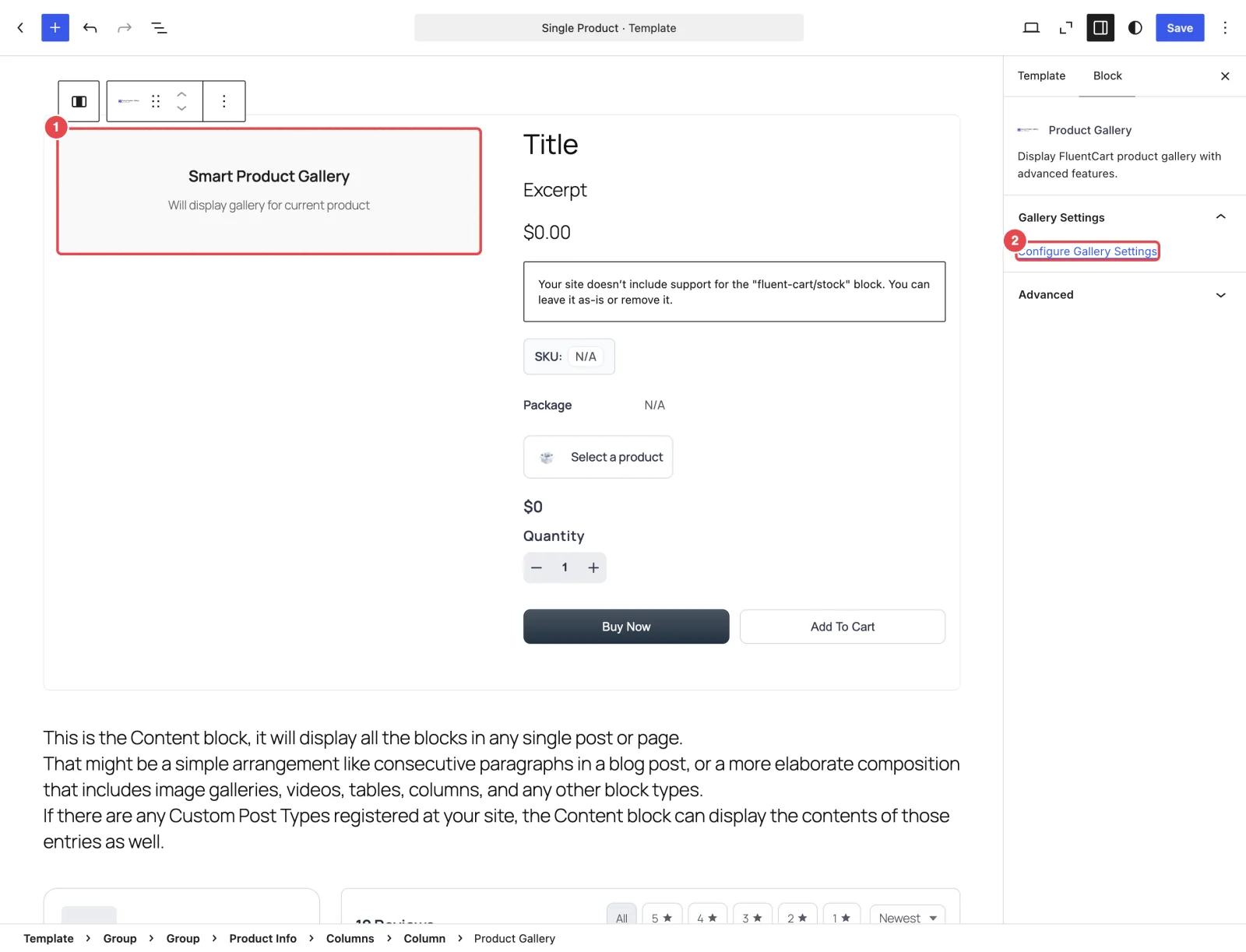
Where it belongs
Use the block in a product template, the template WordPress uses to display every product. That's the Single Product template in the Site Editor (Appearance → Editor → Templates).
Why there? On block themes, FluentCart draws product pages from that template, and the template includes FluentCart's own gallery block. Smart Product Gallery can't swap that block out automatically, so you replace it yourself: remove FluentCart's Product Gallery block and insert this one in its place. Block Editor & Site Editor walks through it step by step.
The block finds its product with get_the_ID(), the post being displayed. In a product template, that's the product the shopper is viewing.
Not for ordinary pages
The gallery's scripts and styles load on FluentCart product, shop and category pages only. The block doesn't load them itself. Drop it on a normal page or post and it either shows "No images found for this product." or appears without its slider and zoom. To show a specific product's gallery on another page, use the shortcode with product_id, which loads its own scripts.
Output
| Situation | Output |
|---|---|
| In a product template, on a product with images | The full gallery |
| The product has no images | "No images found for this product." |
| No current post | "Please select a product." |
The markup is the same as the shortcode's and the automatic gallery's, so the Custom CSS Reference applies to all three.
Where to go next
- Block Editor & Site Editor: put the block into your Single Product template.
- Shortcode: show a gallery anywhere else.
- How It Works: why block themes need this step.