

Classic Themes
On a classic theme, Smart Product Gallery replaces FluentCart's product gallery on its own. There's nothing to place, paste or configure beyond the settings themselves.
A classic theme is a WordPress theme built from PHP template files, with a Customizer (Appearance → Customize) and usually a Widgets screen. Astra, GeneratePress, Kadence, OceanWP, Hello Elementor and the older default themes up to Twenty Twenty-One are all classic themes. If your Appearance menu has an Editor item and no Customize, you're on a block theme instead. See Block Themes.
Not sure which kind you have?
Go to Appearance in your WordPress dashboard. If you see Customize and Widgets, it's a classic theme. If you see Editor, it's a block theme.
It works automatically
When a shopper opens a product, FluentCart builds the top of the page itself: the gallery on the left, then the title, price, variations and buy buttons on the right. It does this through a hook, a point in the page where other plugins can step in. Smart Product Gallery uses that hook to put its own gallery in place of FluentCart's. Everything else in that area stays exactly as FluentCart draws it.
So on a classic theme:
- Install and activate the plugin (Installation).
- Open any product on your site. The new gallery is already there, using the default Thumbs Bottom layout.
- Go to FluentCart → Product Gallery, change whatever you like, and click Save Settings. Reload the product to see the change.
The same replacement happens in the shop page's View Options quick-view pop-up. You don't need to set that up separately (Quick View Pop-up).
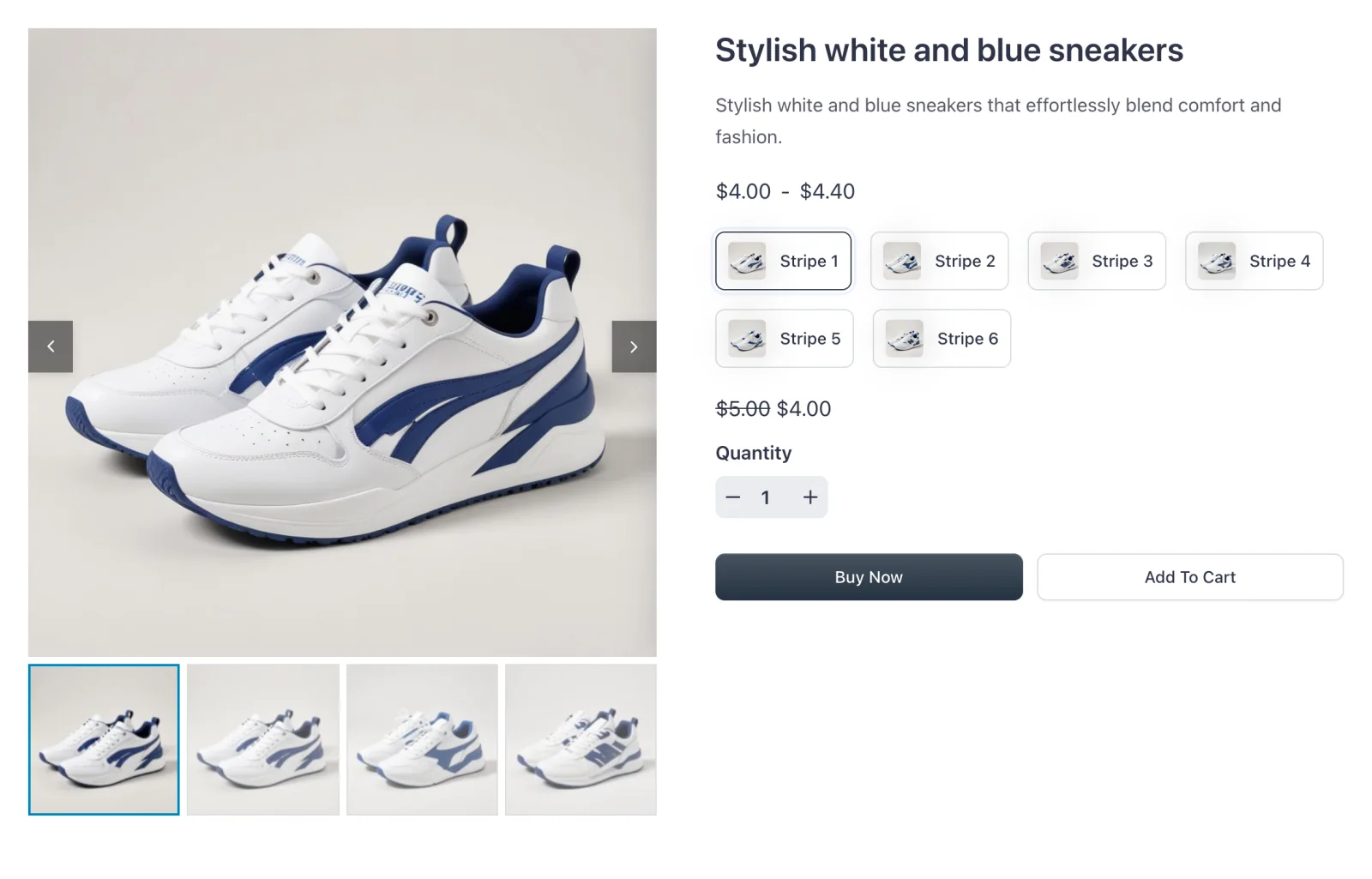
Settings apply to every product
Smart Product Gallery has one set of settings for the whole store. Choosing Tiles under Gallery Layout changes every product's gallery, and you can't give one product a different layout. Most stores like it that way: every product page looks consistent.
Your theme's styling still applies
The gallery brings its own layout, arrows, thumbnails, zoom and lightbox. The rest of the page is your theme's. A few things you might notice:
- Content width. The gallery fills its column. If your theme uses a narrow content area, the gallery is narrower too. Most classic themes let you set a full-width or wider layout per post type, usually in the Customizer.
- Blog-style details above the product. Some themes treat products like blog posts and print an author, date or "Leave a Comment" link above them. Astra does this out of the box. That's the theme, not the gallery. Look for a setting for the fluent-products post type, or the single post meta options, in your theme's Customizer.
- Fonts and colors in the product summary come from your theme and FluentCart. The gallery's own colors (arrows, dots, thumbnail borders) come from the plugin's settings under Navigation & Pagination and General → Thumbnails.
If something in the gallery clashes with your theme, Additional CSS is the place to fix it. The Custom CSS Reference lists the class names.
When the gallery doesn't appear
Automatic replacement depends on FluentCart drawing the product page itself. A few setups skip that step:
| What's happening | Why | What to do |
|---|---|---|
| Your theme or another plugin has its own FluentCart product template | FluentCart's product-page hook never runs, so there's nothing to replace | Add [smart_product_gallery] to that template. See Shortcode |
| You built the product template in Elementor, Divi, Bricks or Oxygen | The builder draws the page, not FluentCart | Use the builder's Shortcode element. See Editors & Page Builders |
A code snippet uses the fluent_cart/disable_auto_single_product_page filter | That switches off FluentCart's automatic product layout, gallery included | Remove the snippet, or place the shortcode yourself |
| You switched to a block theme | Block themes use a template FluentCart provides, and the gallery has to go into it | See Block Themes |
| You still see the old gallery after saving | A page cache is serving the old page | Clear your caching plugin's cache and your browser's, then reload |
For anything else, work through Troubleshooting.
Where to go next
- Choose a layout: eleven to pick from.
- Settings Overview: how the settings panel works.
- Block Themes: if you ever switch themes.