

Captions & Alt Text
Add a line of text under each product photo, and know exactly what the gallery tells screen readers and search engines about your images.
Two pieces of text travel with every photo. A caption is visible text shown with the photo. Alt text (alternative text) is hidden text that describes the photo for people using screen readers and for search engines. Smart Product Gallery handles them differently, so it's worth knowing where each comes from.
Show captions on the product page
Turn on Gallery Image Caption on the General tab and click Save Settings. Each photo that has a caption shows it with the image in the gallery. It's off by default. See Gallery image.
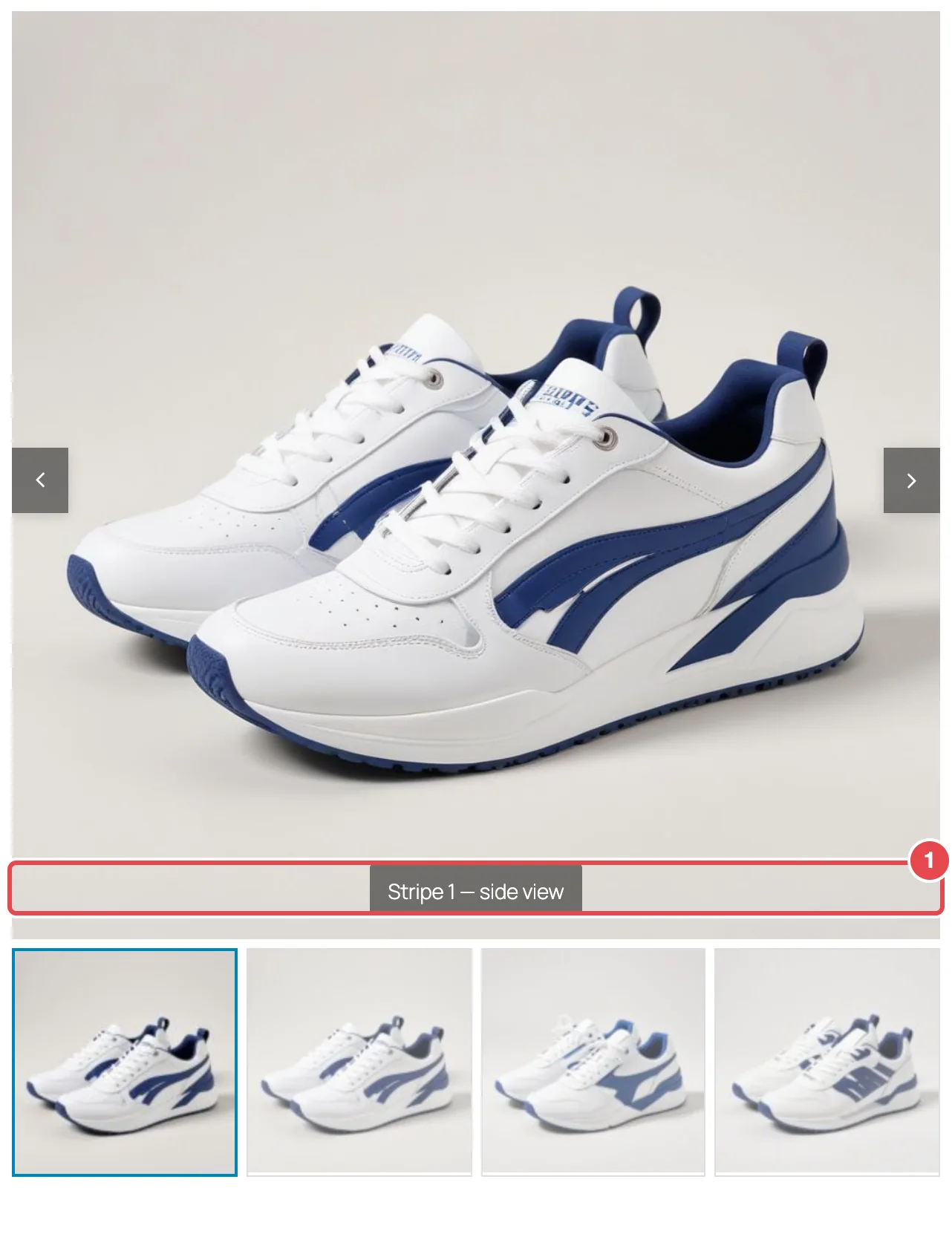
Captions can also appear in the lightbox — that's a separate switch, Lightbox Caption, on the Lightbox tab, and it's on by default.
In the free plugin, Gallery Image Caption is locked with a Pro tag.
Where captions come from
The caption is the Caption field of the image in your WordPress Media Library. To add or change one:
- Go to Media → Library and click the image.
- Fill in Caption in the attachment details.
- The change saves automatically. Reload the product page to see it.
A photo without a caption simply shows no caption — there's no placeholder text.
Keep captions short
A caption sits on or under a product photo. One short line — a color name, an angle, "Shown in size M" — reads well. Save longer copy for the product description.
Where alt text comes from
The gallery writes alt text for every photo automatically, from these sources:
| Photo | Alt text used |
|---|---|
| The product's featured image | The product's title |
| A product gallery image | The image's title in FluentCart, or the product title if there isn't one |
| A variation image | The image's title, then the variation's title, then the product title |
Thumbnails use the same alt text as the photo they belong to.
The Media Library's "Alternative Text" field isn't used
The gallery takes alt text from image and product titles, not from the Alternative Text field in the Media Library. If accessibility and image search matter to you — they should — give your product images descriptive titles (for example "White and blue sneaker, side view" rather than "IMG_2041"), and give each product a clear title.
Things worth knowing
- Good titles do double duty. Because alt text comes from titles, naming your images well improves both accessibility and how your photos appear in image search.
- Captions are per image, not per product. If the same image is used on two products, it shows the same caption on both.
Where to go next
- Accessibility & RTL — the other accessibility options
- Lightbox — captions in the full-screen view
- General settings