

Gallery per Variation
Give each color or style its own photos, so the gallery switches the moment a shopper picks one.
What you're building
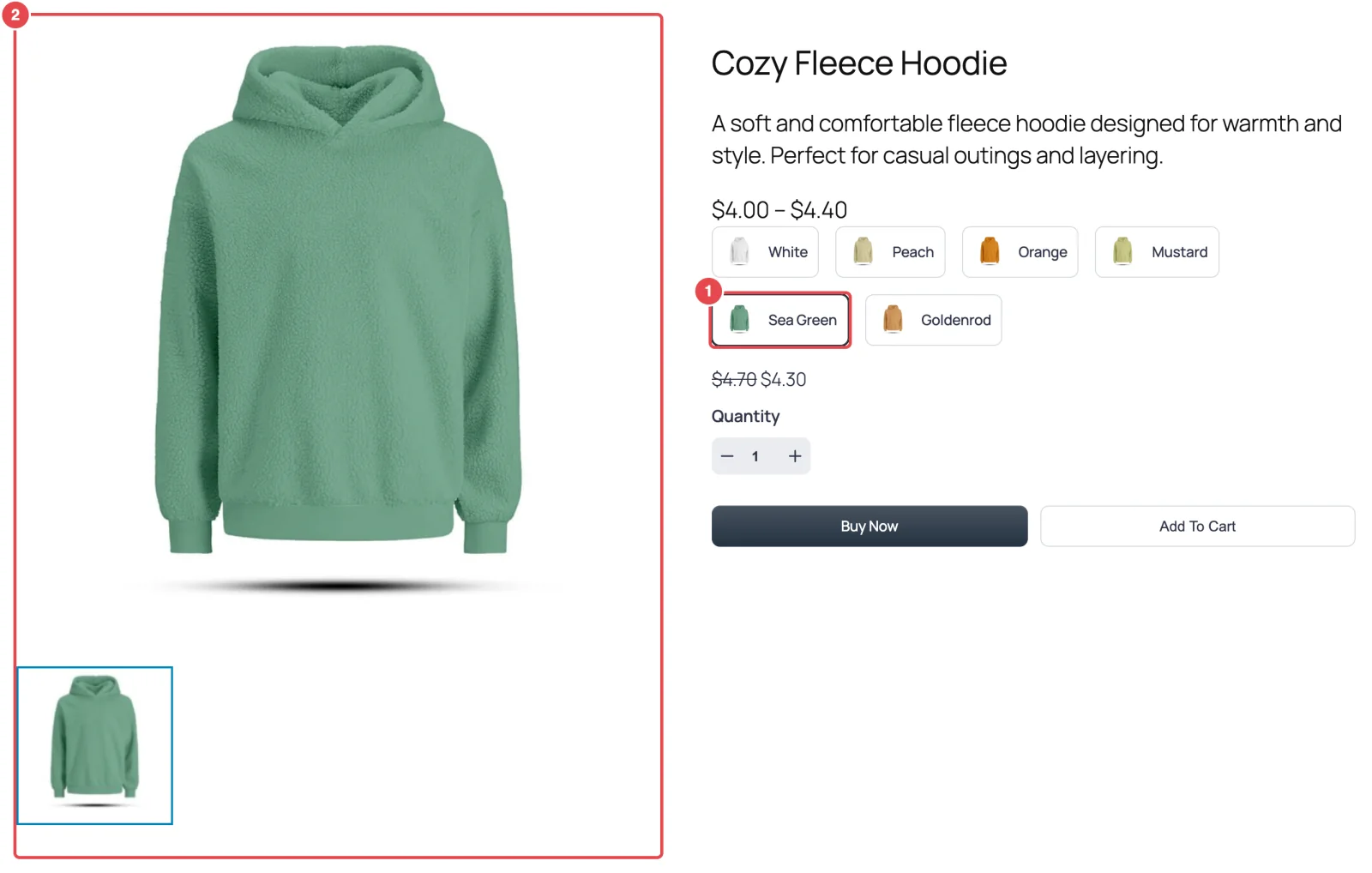
A shopper looking at a hoodie that comes in white, peach and orange wants to see the orange one after clicking "Orange". They don't want to scroll past photos of the white one. In this tutorial you attach photos to each variation in FluentCart. Smart Product Gallery then swaps the gallery to match whichever variation is selected.
A variation is one version of a product: a color, a size, a material. FluentCart lists them on the product page as a row of buttons.
One list of variations, not attribute swatches
This works for products with a single list of variations (one row of buttons such as White, Peach, Orange). Products built from several attributes, like Material and Color shown as separate rows of swatches, don't switch the gallery yet. See Variation Images.
How the gallery decides what to show
It helps to know the rules before you upload anything. Smart Product Gallery builds the gallery from three sources, in this order:
- The product's featured image
- The product's gallery images
- Each variation's own images
When a shopper picks a variation, the gallery narrows to that variation's images only. If the picked variation has no images of its own, the gallery falls back to the product's featured and gallery images. Shoppers never see an empty gallery.
Step 1: Add images to each variation
- In FluentCart, open the product for editing.
- In the product's pricing section, find the list of variations.
- For each variation, open its media and add one or more photos of that version. Add the orange hoodie's photos to "Orange", and so on.
- Update the product.
Several variations, same photo?
If you sell sizes in one color, every size can share the same photos. FluentCart can apply one variation's media to the others in its group, so you don't have to upload the same photo six times.
Keep your variation photos consistent with your main photos: same background, same framing, same shape. The gallery switches instantly, and a jump in style looks like a glitch.
Step 2: Choose what shoppers see first
Before a shopper picks anything, the gallery has to show something. Smart Product Gallery has a setting for this:
- Go to FluentCart → Product Gallery → General.
- Find Gallery Image Source and choose one of these:
| Option | Before a variation is picked | After a variation is picked |
|---|---|---|
| Default & Variation Images (default) | Every image: featured, gallery and all variation photos | That variation's photos |
| Variation Images | The first variation's photos only | That variation's photos |
- Click Save Settings.
Default & Variation Images suits most stores. A shopper arriving on the page sees the whole range at a glance. Variation Images suits products where the variations look very different and the "everything" view would be confusing, like a rug in five patterns. It opens on one clean set.
Step 3: Test it
- Open the product on your store and refresh.
- Click each variation in turn. The main image and thumbnails should change to that variation's photos.
- Try a variation you didn't add photos to. The gallery should show the product's main photos.
It works in grids and the quick view too
The switching isn't limited to slider layouts. In Tiles, Hierarchy Grid, Modern Grid and Anchor Nav, the grid redraws with the picked variation's photos. The shop's quick-view pop-up behaves the same way. Variation Images →
Troubleshooting
The gallery doesn't change when I pick a variation. Check the variation actually has its own images in FluentCart, and that you updated the product. Clear any page cache, then refresh.
I see the same photo twice. The same image is set as the product's featured image and as a variation's image. Under Default & Variation Images both copies appear. Remove one, or switch to Variation Images.
Where to go next
- Variation Images — how variation filtering works in each layout
- Quick View Pop-up — variations in the shop pop-up
- Best Practices — keeping photo sets consistent