

Multi-row Thumbs
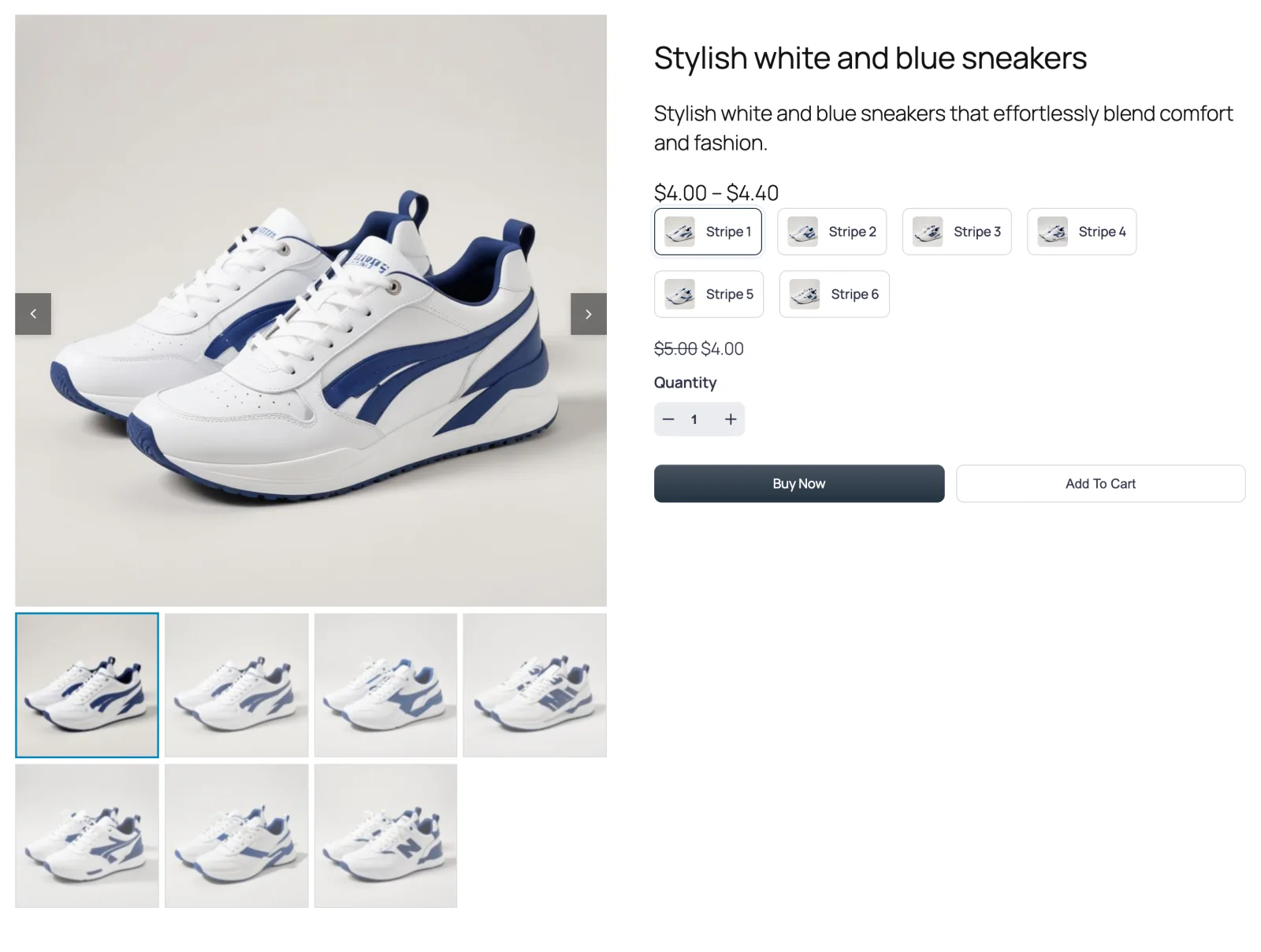
The main image with every thumbnail laid out below it in rows that wrap — no scrolling strip, so shoppers see at a glance how many photos there are.

Multi-row Thumbs works like Thumbs Bottom, with one difference: instead of a single strip that scrolls sideways, the thumbnails wrap onto as many rows as they need. A product with seven photos and four thumbnails per row shows a row of four and a row of three.
The free plugin doesn't include this layout; it ships Thumbs Bottom and Thumbs Top.
When to choose it
- Your products have lots of photos. Eight, ten, twelve — a single strip would hide most of them behind arrows. Rows show them all.
- You want nothing hidden. Every photo is one click away, without having to discover that the strip scrolls.
- You'd like a grid feel but still want a big main image. It sits between a thumbnail layout and a full grid.
How to switch to it
- Go to FluentCart → Product Gallery → General.
- Under Gallery Layout, click Multi-row Thumbs.
- Click Save Settings.
Settings that appear for this layout
On the General tab:
- Thumbnail Items Per View — here it means thumbnails per row (default 4). See Thumbnails.
- Thumbnails Space — the gaps between thumbnails and between rows. Its two values are applied the other way round from what their labels suggest in this layout: Gap spaces the rows and Vertical Gap spaces the thumbnails within a row. Setting both to the same number avoids the confusion. See Thumbnails.
- Thumbnails Inner Padding, Thumbnails Size, Thumbnails Border, Thumbnails Hover Effect and Thumbnails Activate on. See Thumbnails.
- Active Thumbnail Style and Inactive Thumbnails Effect. See Active thumbnail and Inactive thumbnails.
- Gallery Bottom Gap, Gallery Image Caption and Gallery Image Source. See Gallery image.
The Gallery Slider, Navigation & Pagination, Thumbnails Navigation and Product Image sub-tabs are all available. Because every thumbnail is already on screen, the thumbnail arrows from Thumbnails Navigation usually have nothing to scroll.
Sub-tabs hidden for this layout
- Show More Button — grid layouts only.
Things worth knowing
- The gallery gets taller as photos are added. Each new row pushes the content below further down. For very large photo sets, a grid with a Show More button may be tidier.
- Pick a per-row number that divides your typical photo count. Four per row with eight photos gives two full rows; four per row with five photos leaves one lonely thumbnail on the second row.