

Divi
Place the gallery in a Divi product template or page with a Code module.
First, check whether you need this at all. If your Divi product template includes the product's main content (a Post Content element or similar), FluentCart builds the product area. Smart Product Gallery then appears there automatically, with nothing to add. Use the steps below when the gallery doesn't show: your template uses FluentCart's own gallery element, or you've laid the product area out by hand.
You can do this in 3 steps
- Style the galleryFluentCart → Product Gallery. Once, for every product.
- Copy the shortcodeAdvanced → Advanced Controls.
- Add a Code moduleInsert Module → Code, then paste.
Step 1: Style the gallery
The builder only places the gallery. Its look (layout, zoom, arrows, colors) comes from the settings page and is shared by every product.
- Go to FluentCart → Product Gallery.
- Choose a layout and adjust what you like. Quick Start →
- Click Save Settings.
Step 2: Copy the shortcode
A shortcode is a short tag in square brackets that WordPress swaps for real content when the page loads. Smart Product Gallery's is:
[smart_product_gallery]You can type it, or copy it from the plugin. Open Advanced → Advanced Controls and click the Shortcode field. You'll see "Copy successfully" when it's on your clipboard.
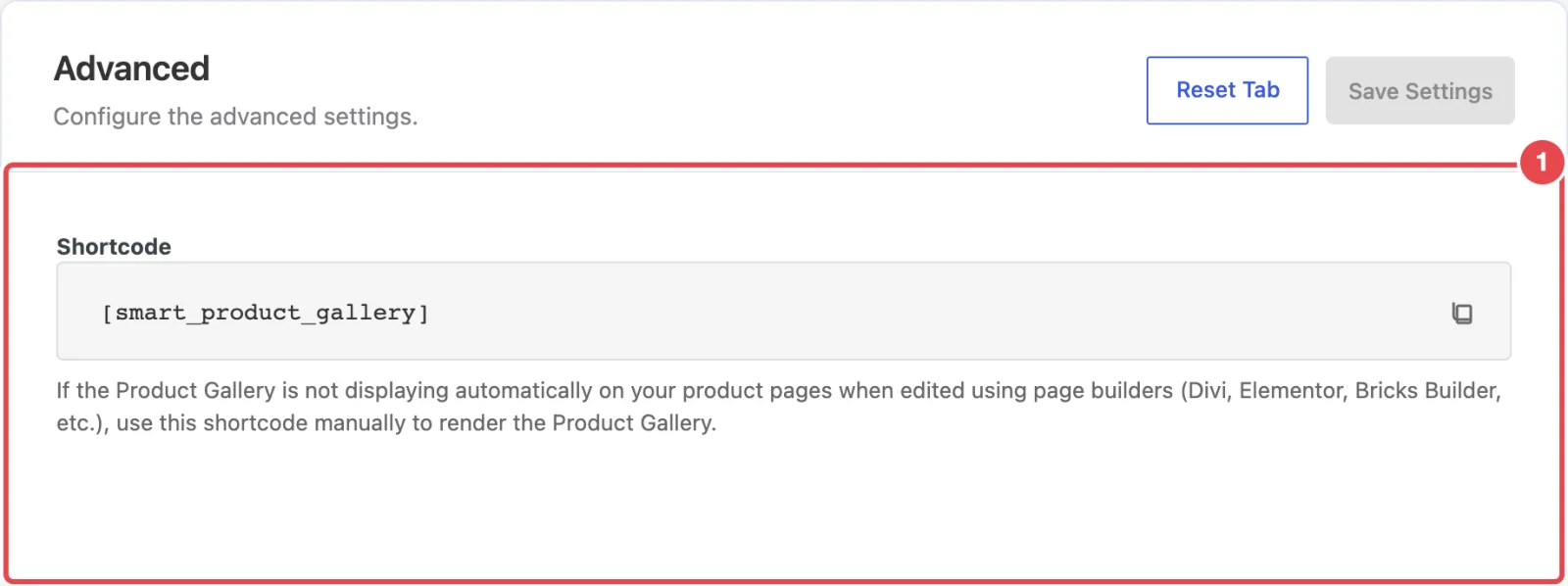
Which product does it show?
In a single-product template, leave the shortcode as it is. It shows the gallery of whichever product is being viewed. On an ordinary page (a landing page, say), name the product: [smart_product_gallery product_id="123"]. You'll find the ID in the address bar when you edit the product in FluentCart.
Step 3: Add a Code module
- Open the layout in the Divi Builder. For every product at once, use Divi → Theme Builder and edit the body of the template assigned to your FluentCart products.
- If the layout already has FluentCart's gallery, remove it.
- Click the grey + where the gallery should go, choose Code from the module list, and paste
[smart_product_gallery]into its content box. A Text module works too. Paste into its Text tab, not the Visual tab, so the brackets aren't reformatted. - Save the layout.
Save or publish the template, then open a product in a private browser window to check it.
Troubleshooting
Two galleries show on the product page. The template still has FluentCart's gallery, or a Post Content element that already brings the gallery in automatically. Remove the extra one.
"Please provide a valid product ID." The shortcode can't tell which product to show. That happens on pages that aren't product pages. Add product_id="…" with the product's ID.
The gallery shows but looks unstyled, or doesn't slide. Clear any caching or optimization plugin's cache, then reload. If you use a "delay JavaScript" or "combine scripts" option, exclude the gallery's scripts (Swiper and the plugin's gallery.js) from it.
My change in the settings didn't show up. Press Save Settings on the settings page, then refresh the product page. The builder's own preview may not reflect gallery settings until you reload it.