

Lightbox
Click a product photo and it opens full screen over a dark background, where shoppers can swipe through every photo, zoom in, play a slideshow or go fullscreen. Choose which tools they get.
A lightbox is a full-screen viewer that opens on top of the page. It's on by default: clicking any gallery image opens it at that photo, and shoppers move through the rest with arrows, the keyboard or a swipe. Clicking the dark background or the close button returns them to the product page exactly where they were.
The lightbox is part of Smart Product Gallery Pro. The free plugin has no Lightbox tab.
All the options are in FluentCart → Product Gallery → Lightbox. The field-by-field reference is on the Lightbox settings page.
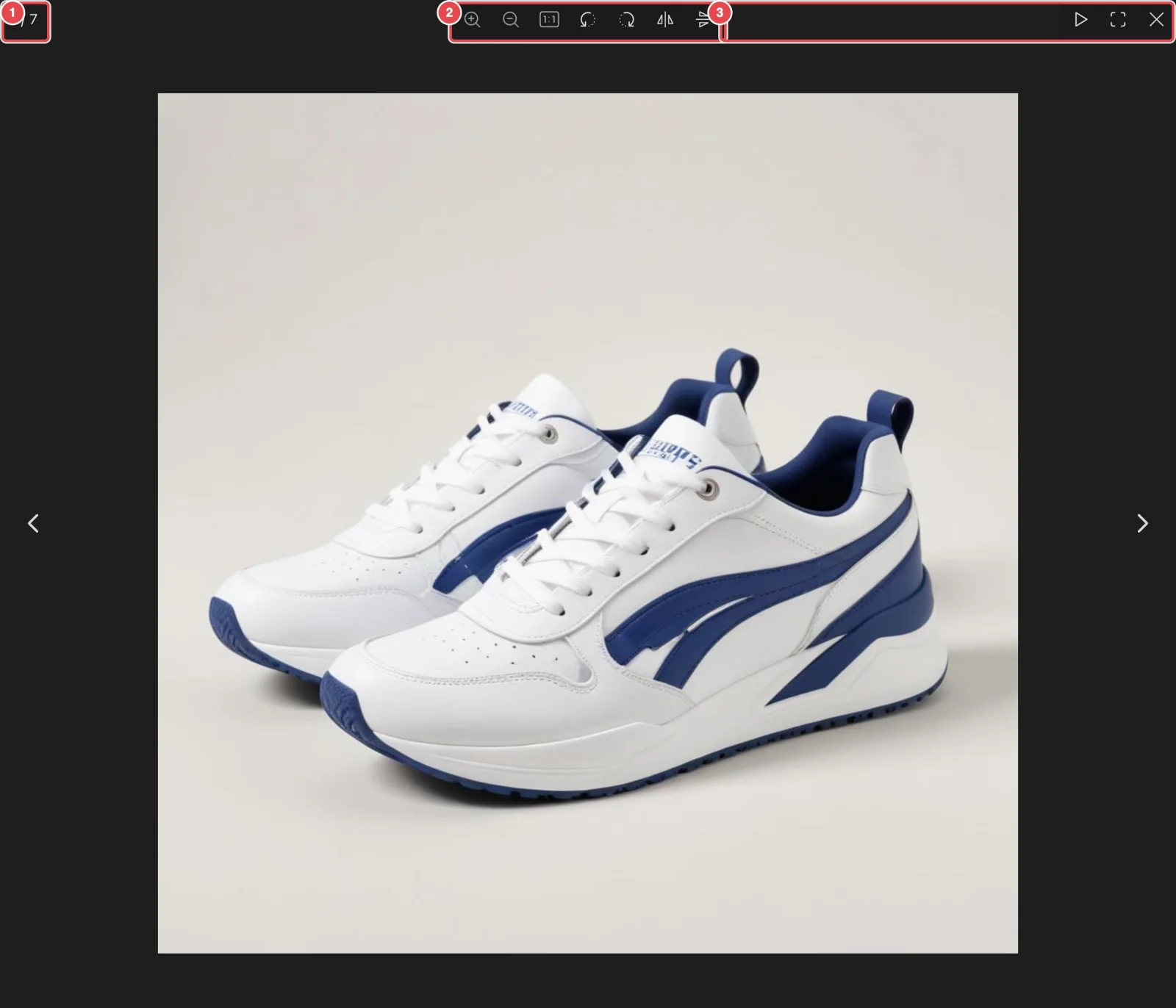
What shoppers can do in the lightbox
Each tool has its own switch, so you can keep the toolbar as busy or as quiet as you like. See Lightbox toolbar.
| Tool | What it does | On by default? |
|---|---|---|
| Image Counter | Shows "3 / 7" in the top-left corner | Yes |
| Slideshow Play Button | Plays the photos one after another | Yes |
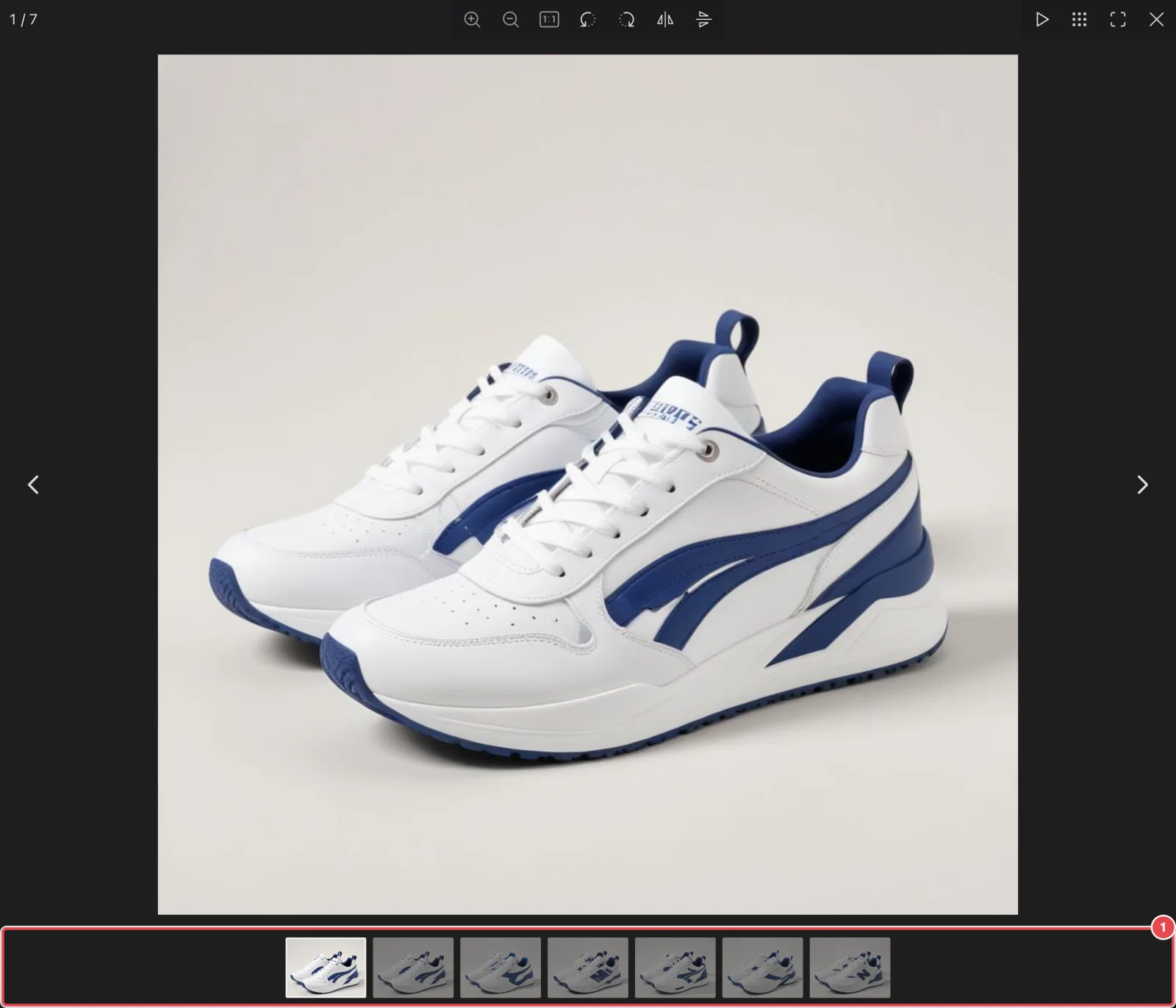
| Thumbnails Gallery Visibility | Shows a strip of thumbnails at the bottom of the lightbox | No |
| Thumbnails Gallery Button | A button to show and hide that strip (needs the strip turned on) | Yes |
| Download Button | Lets shoppers download the full-size photo | No |
| Full Screen Button | Expands the lightbox to fill the whole screen | Yes |
| Transform Controls | Zoom in and out, view at actual size, rotate and flip | Yes |
Inside the lightbox, clicking the photo toggles zoom and the scroll wheel zooms too, whatever you set on the Zoom tab. On a phone, shoppers pinch to zoom — which makes the lightbox the zoom tool for touch screens.
Show a thumbnail strip
Turn on Thumbnails Gallery Visibility to add a strip of thumbnails along the bottom of the lightbox. Pick Classic or Modern under Thumbnails Style, and keep Thumbnails Gallery Button on if you want shoppers to be able to hide the strip.
Change how photos move
Lightbox Sliding Effect controls the transition between photos: Slide (default), Fade, Classic, Crossfade or No Animation. Lightbox Overlay Background sets the color behind the photo — a dark grey (#1e1e1e) by default. See Lightbox effect.
Show captions
With Lightbox Caption on (the default), each photo's WordPress caption appears under it in the lightbox. Set the size with Lightbox Caption Font Size and the color with Caption Color. A photo without a caption simply shows nothing. See Lightbox caption, and Captions & Alt Text for where captions come from.
Turn the lightbox off
Switch off Enable Lightbox and click Save Settings. Clicking a photo then does nothing, and hover zoom keeps working.
Things worth knowing
- Download means download. With Download Button on, shoppers get your full-size original. Leave it off if you'd rather they didn't.
- The lightbox shows the photos currently in the gallery. If a shopper has picked a variation and the gallery is showing only that variation's photos, the lightbox shows the same set. See Variation Images.
- Rotate and flip are for looking, not editing. They change the view in the shopper's browser only.
Where to go next
- Lightbox settings — every field, with defaults
- Image Zoom — hover zoom on the product page
- Captions & Alt Text