

Image Zoom
Let shoppers look closer without leaving the page: hover over a product photo and it magnifies right under the pointer. Choose how the zoom looks and how strong it is.
Zoom is on by default. When a shopper moves the pointer over the main image, a magnified view follows the pointer so they can check stitching, texture or a label. It works on the main image of the slider layouts and on every photo of the grid and scrolling layouts.
You'll find every zoom option in FluentCart → Product Gallery → Zoom. The field-by-field reference is on the Zoom settings page; this page helps you choose.
Pick a zoom style
Zoom Style decides where the magnified view appears. There are four. See Zoom style for the setting itself.
Default — zoom inside the image
The photo magnifies inside its own frame, following the pointer. It's the least intrusive style: nothing pops up, nothing covers the product details. You control how strong it is with Zoom Scale.
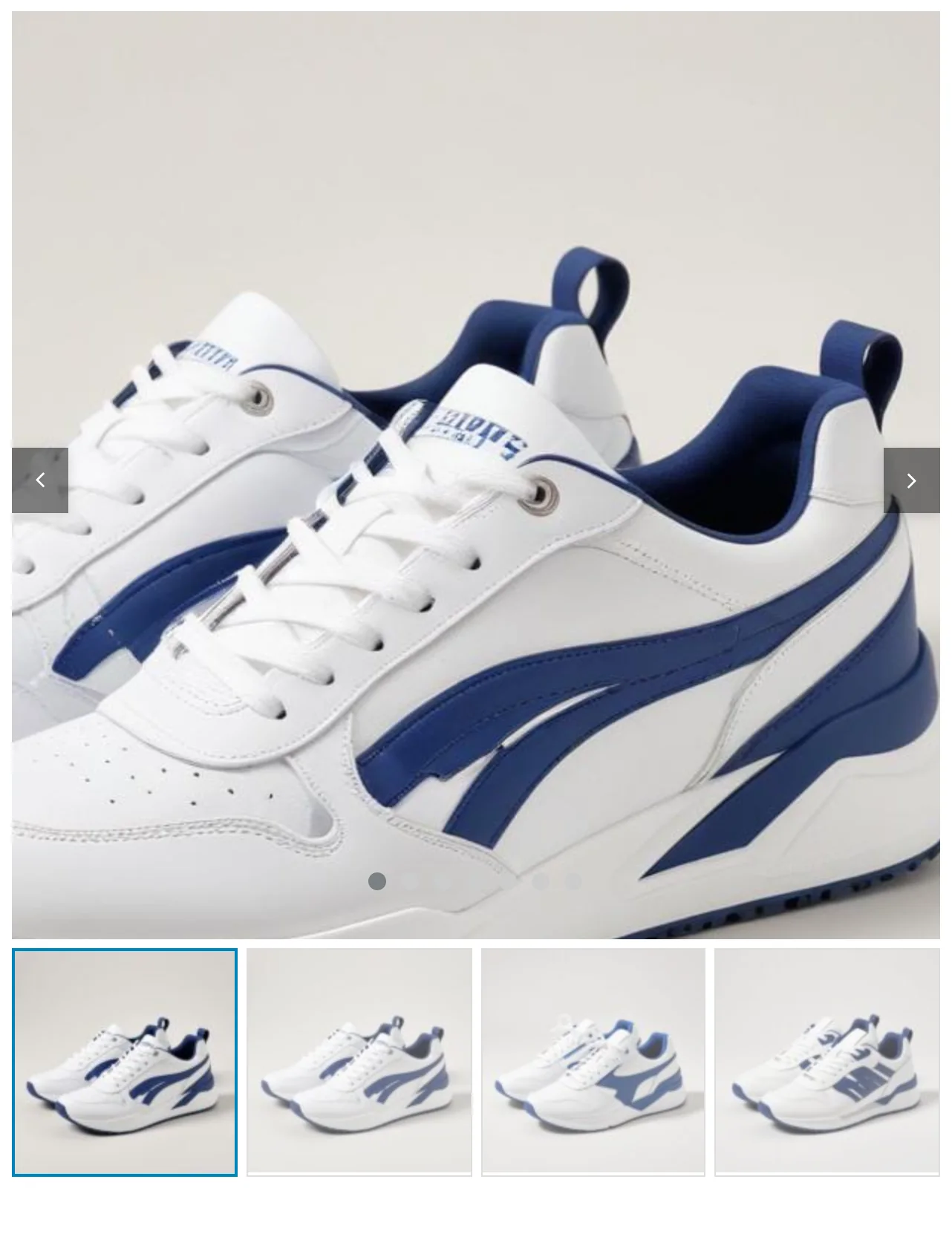
Inside (2x) — a fixed double zoom
The same inside-the-frame zoom, always at twice the size. There's no Zoom Scale to set. Pick it if you want the effect without thinking about the strength.
Outside — a zoom window beside the image
A lens appears over the photo and a separate window opens to its right showing the magnified area — the classic big-retailer look. The photo you're hovering is softened with an overlay so the lens stands out. On a right-to-left site, the window opens on the left instead.
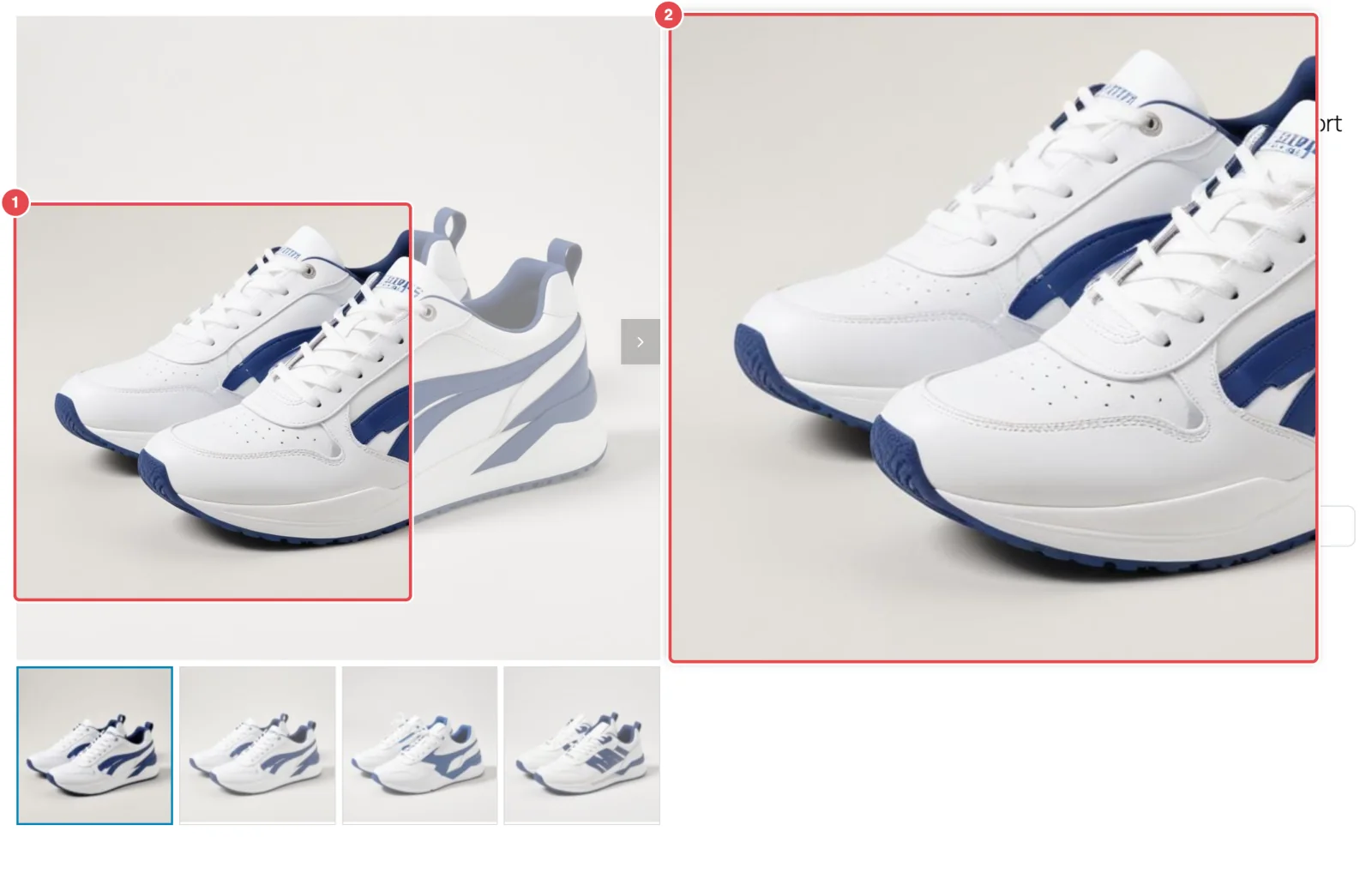
The Outside style has the most options: the lens color and border, the overlay (Blur or a Custom Color with an opacity), the zoom window's size, distance from the image, border and shadow. See Outside zoom.
Magnific — a magnifying glass
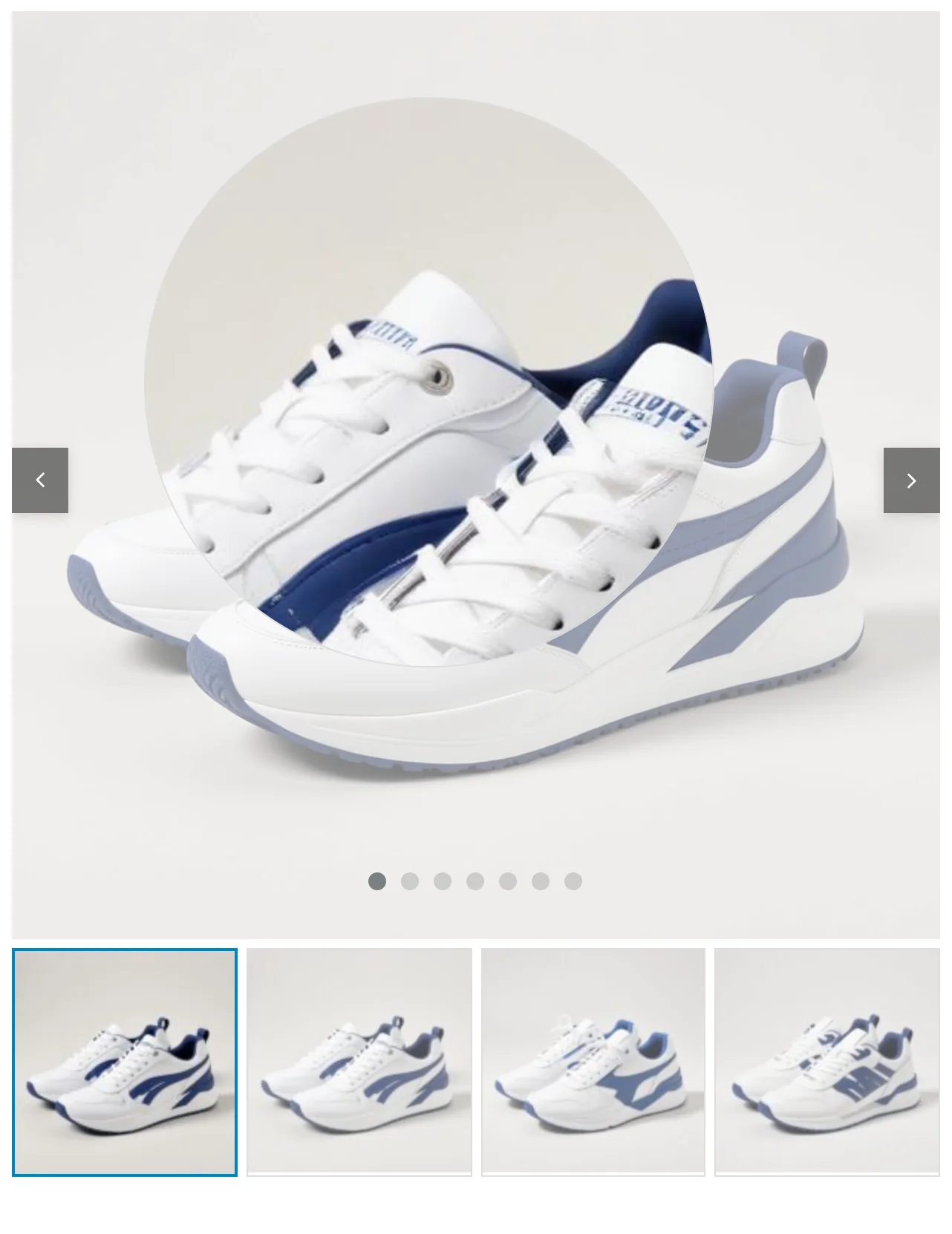
A lens, round or square, floats over the photo and magnifies whatever is under it — like holding a magnifying glass to the screen. Choose the shape with Lens Shape. See Magnific lens.
Set how strong the zoom is
Zoom Scale sets the magnification, from 1 to 10 (default 2). Two is a good start for most product photos; push it higher only if your photos are large enough to stay sharp. It applies to every style except Inside (2x). See Zoom behavior.
MouseWheel Zoom lets shoppers change the magnification with their scroll wheel while hovering. It's off by default because it hijacks scrolling while the pointer is over the image — handy for some shoppers, confusing for others.
Cursor Style changes the pointer over the image (Default, Pointer, Crosshair or Zoom In). A Zoom In cursor is a nice hint that the image can be zoomed.
Turn zoom off
Switch off Enable Image Zoom at the top of the Zoom tab and click Save Settings. Turning it off hides every other zoom option.
Things worth knowing
- Zoom needs big photos. Zoom magnifies the image file the gallery loaded. If your Image Size on the Product Image sub-tab is smaller than the frame, there's no extra detail to show and the zoom looks blurry. "Original uploaded image" (the default) gives the most detail.
- There's no hover on touch screens. Phone and tablet shoppers don't get the hover zoom. They can open the photo in the lightbox and pinch to zoom there instead.
- Zoom and the lightbox work together. Hovering zooms; clicking opens the lightbox.
- In the free plugin, Default and Inside (2x) are available; Outside, Magnific, Zoom Scale and MouseWheel Zoom are locked with a Pro tag, and the lens, overlay and window options aren't shown.
Where to go next
- Zoom settings — every field, with defaults
- Lightbox — the full-screen view
- Fashion Store Gallery — a walkthrough using Thumbs Left with the Outside zoom