

Advanced
Two tools for when the standard options aren't enough: a shortcode for pages where the gallery doesn't appear on its own, and a box for your own CSS.
Where to find it: FluentCart → Product Gallery → Advanced. It has three sub-tabs:
- Advanced Controls (
#advanced/advanced_controls) - Additional CSS (
#advanced/additional_css) - License Key (
#advanced/license_key), documented on its own page
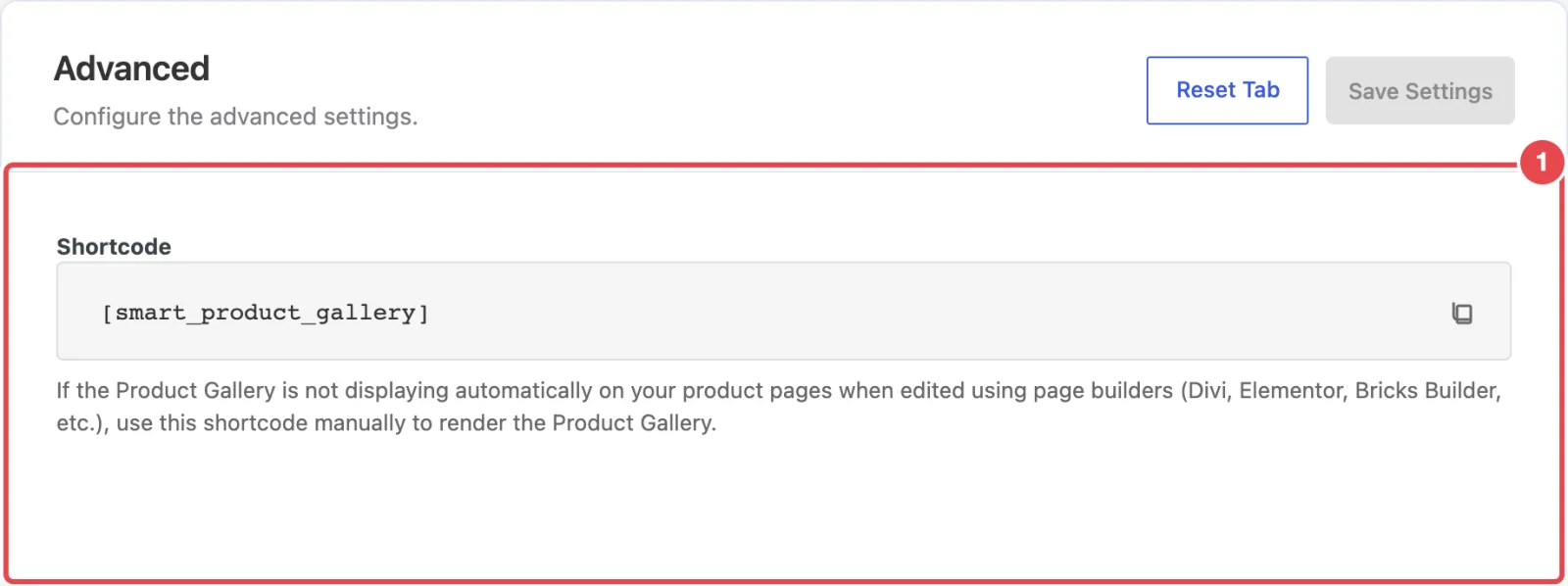
Shortcode
A shortcode is a short code in square brackets that WordPress swaps for real content when the page loads. The Advanced Controls sub-tab shows the gallery's shortcode:
[smart_product_gallery]Click the field to copy it; you'll see "Copy successfully". As the panel puts it:
If the Product Gallery is not displaying automatically on your product pages when edited using page builders (Divi, Elementor, Bricks Builder, etc.), use this shortcode manually to render the Product Gallery.
Most of the time you won't need it. On a classic theme, the gallery replaces FluentCart's own on every product page automatically. Reach for the shortcode when:
- you've built your product page template in a page builder, and the gallery doesn't appear there;
- you want a product's gallery on a page that isn't the product page, such as a landing page.
Placed in a product template, the shortcode shows the current product's gallery. Anywhere else, name the product: [smart_product_gallery product_id="123"]. The Shortcode reference explains how to find a product's ID, and the page builder guides show where to paste it in each builder.
Additional CSS
CSS is the code that controls how a web page looks. The Additional CSS sub-tab gives you a box (placeholder "Add your custom CSS here...") for your own rules. The panel's note says:
Add custom CSS to style the gallery. This CSS will be loaded after the default styles.
Because it loads after the plugin's styles, your rules win when both target the same thing. The CSS only loads on pages that show the gallery, so it won't affect the rest of your site.
| Setting | What it does | Default |
|---|---|---|
| Additional CSS | Your own CSS, applied wherever the gallery appears. Write plain CSS rules; don't wrap them in <style> tags. | Empty |
The Custom CSS Reference lists the gallery's class names and has ready-to-paste recipes.
Reset Tab on Advanced
Clicking Reset Tab here empties the Additional CSS box. Your license key isn't affected. If you've written a lot of CSS, keep a copy somewhere safe first.
In the free plugin
The free Smart Product Gallery for FluentCart has both Advanced Controls (with the same shortcode) and Additional CSS. It doesn't have the License Key sub-tab.
Where to go next
- License Key: activate Smart Product Gallery Pro.
- Shortcode reference: every way to use
[smart_product_gallery]. - Custom CSS Reference: class names and recipes.