

Lightbox
A lightbox opens a product photo full-screen over the page, so shoppers can see it big, move through the gallery and come back to where they were. This tab decides how it looks and which buttons it has.
Where to find it: FluentCart → Product Gallery → Lightbox (admin.php?page=smart-product-gallery#lightbox)
With the lightbox on, clicking a gallery image opens it full-screen. On grid layouts, each image also gets a small magnifier icon in its corner. Inside the lightbox, shoppers can swipe or use the arrow keys to move between images, click an image to zoom in, and press Esc or click the dark background to close. Lightbox covers what shoppers see in more detail.
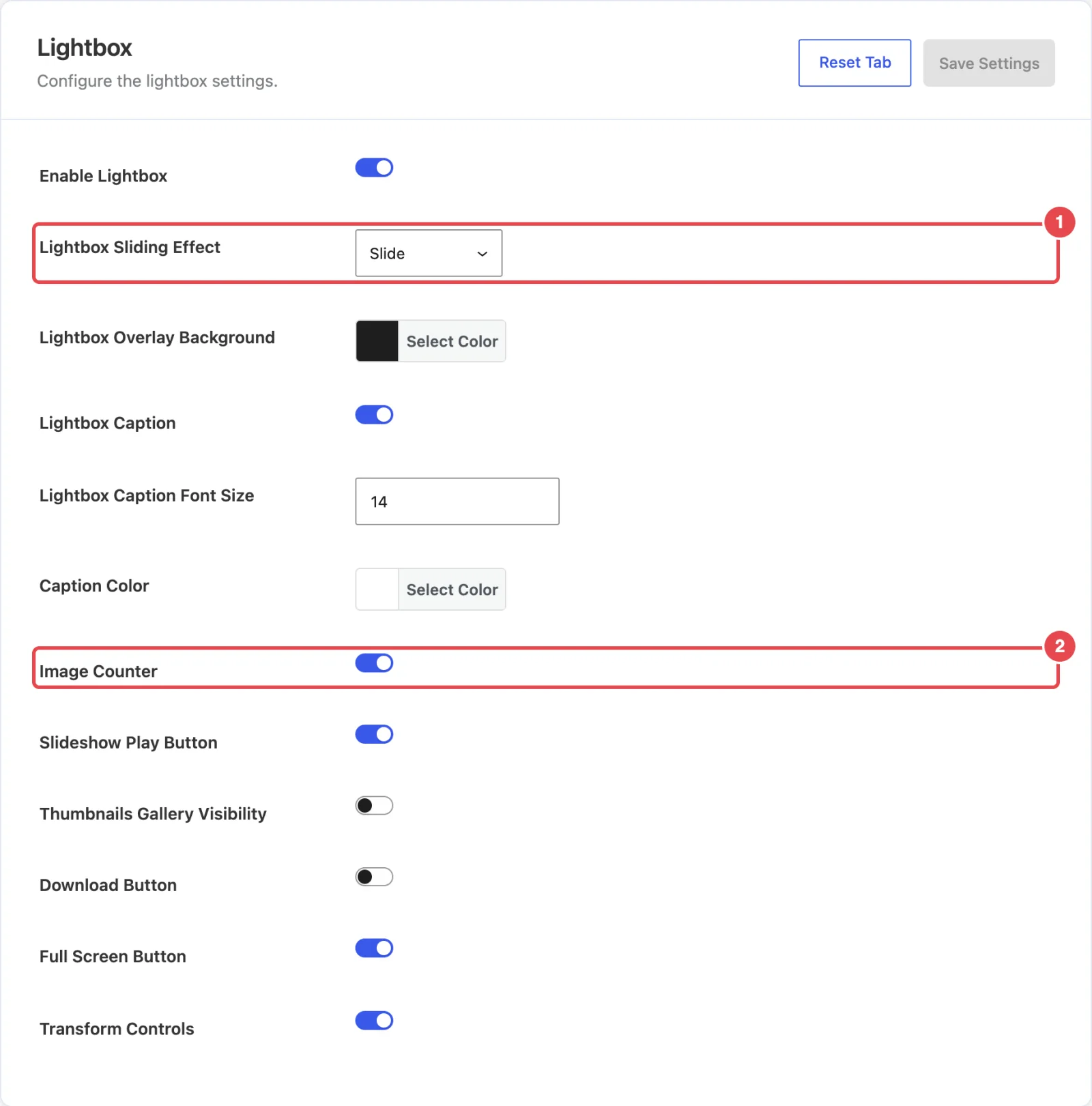
Effect and background
| Setting | What it does | Default |
|---|---|---|
| Enable Lightbox | Opens gallery images in a full-screen viewer when clicked. Everything else on this tab depends on it. | On |
| Lightbox Sliding Effect | The transition between images inside the lightbox: Slide, Fade, Classic, Crossfade or No Animation. | Slide |
| Lightbox Overlay Background | The color that covers the page behind the image. A near-black keeps the attention on the product. | #1e1e1e |
Caption
| Setting | What it does | Default |
|---|---|---|
| Lightbox Caption | Shows each image's caption under it in the lightbox. The text comes from the image's Caption field in the Media Library. | On |
| Lightbox Caption Font Size | Caption size in pixels. Shown when Lightbox Caption is on. | 14 |
| Caption Color | Caption text color. Shown when Lightbox Caption is on. | #ffffff |
This caption setting is separate from Gallery Image Caption on the General tab. That one shows captions on the page; this one shows them in the lightbox. You can turn on either, both or neither. Captions & Alt Text explains how to add the text.
Toolbar and extras
The lightbox has a slim toolbar across the top. These switches choose what's on it.
| Setting | What it does | Default |
|---|---|---|
| Image Counter | Shows the position, such as "3 / 7", at the top left. | On |
| Slideshow Play Button | Adds a play button that steps through the images automatically. | On |
| Thumbnails Gallery Visibility | Shows a strip of thumbnails along the bottom of the lightbox, so shoppers can jump straight to any image. | Off |
| Thumbnails Gallery Button | Adds a toolbar button that shows and hides that thumbnail strip. Shown when Thumbnails Gallery Visibility is on. | On |
| Thumbnails Style | Classic shows small square thumbnails; Modern shows a slimmer, more compact strip. Shown when Thumbnails Gallery Visibility is on. | Classic |
| Download Button | Adds a button that downloads the full-size image. | Off |
| Full Screen Button | Adds a button that expands the lightbox to fill the whole screen, hiding the browser's own bars. | On |
| Transform Controls | Adds a group of buttons in the middle of the toolbar: zoom in, zoom out, toggle actual size, rotate left, rotate right, flip horizontally and flip vertically. | On |
Should you allow downloads?
Download Button is off by default, and that's usually right for a shop. Shoppers can already see the photos at full size. A download button mainly helps people copy your product photography. Turn it on if your images are meant to be shared, for example for press kits or wholesale catalogues.
There's always a close button at the right-hand end of the toolbar.
In the free plugin
The free Smart Product Gallery for FluentCart doesn't have a lightbox, so there's no Lightbox tab. Clicking an image there doesn't open anything. (The free plugin's WordPress.org listing mentions a lightbox, but it's a Pro feature.)
Where to go next
- Lightbox feature guide: what shoppers see and how to get the most from it.
- Captions & Alt Text: write captions that show in the lightbox.
- Zoom: hover zoom on the page itself.