

Installation & License
Install the free plugin from WordPress.org or upload Pro from your ShapedPlugin account, then activate your license key.
Before you start, make sure FluentCart is installed and active. Smart Product Gallery replaces FluentCart's gallery, so it needs FluentCart there first. Requirements →
You only need one of the steps below. Install the free plugin or Pro. Pro is complete on its own and doesn't need the free plugin. Which one do I need?
Install the free plugin
- In your WordPress admin, go to Plugins → Add New Plugin.
- Search for Smart Product Gallery for FluentCart.
- Click Install Now, then Activate.
That's it. There's no license key and no account to create. Jump to Check it worked.
Install Smart Product Gallery Pro
Pro isn't on WordPress.org, so you upload it yourself.
- Sign in to your ShapedPlugin account at account.shapedplugin.com and download Smart Product Gallery Pro. You'll get a
.zipfile. Leave it zipped. - In your WordPress admin, go to Plugins → Add New Plugin and click Upload Plugin at the top.
- Choose the
.zipfile, click Install Now, then Activate Plugin.
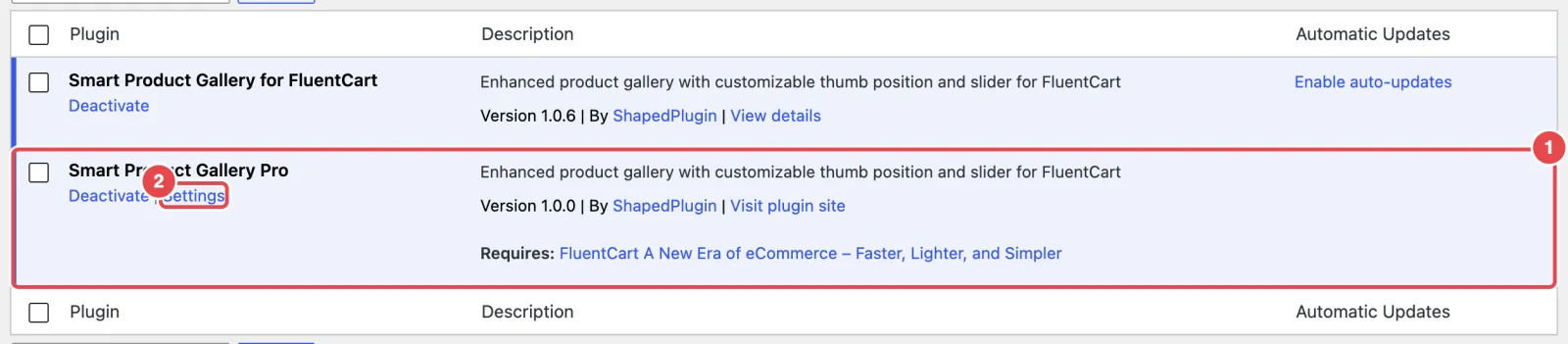
Already using the free plugin?
You don't need to remove it. When Pro is active, the free plugin switches itself off and Pro takes over with your existing settings. Both plugins save to the same place. If you want to tidy up, deactivate the free plugin rather than deleting it. Deleting either plugin wipes the shared settings. Why →
Can't upload through the admin? Install via FTP instead
Some hosts limit upload sizes. If the upload fails:
- Unzip
smart-product-gallery-pro.zipon your computer. You'll get a folder calledsmart-product-gallery-pro. - Using FTP or your host's file manager, upload that folder to
wp-content/plugins/. - Go to Plugins in your admin and click Activate under Smart Product Gallery Pro.
Activate your license
Pro needs a license key. Activating it links this site to your purchase, which is how ShapedPlugin knows the site is covered for updates and support. Until you activate it, Pro shows a reminder at the top of every admin page.
- Find your license key in your ShapedPlugin account, next to your Smart Product Gallery Pro download. Copy it.
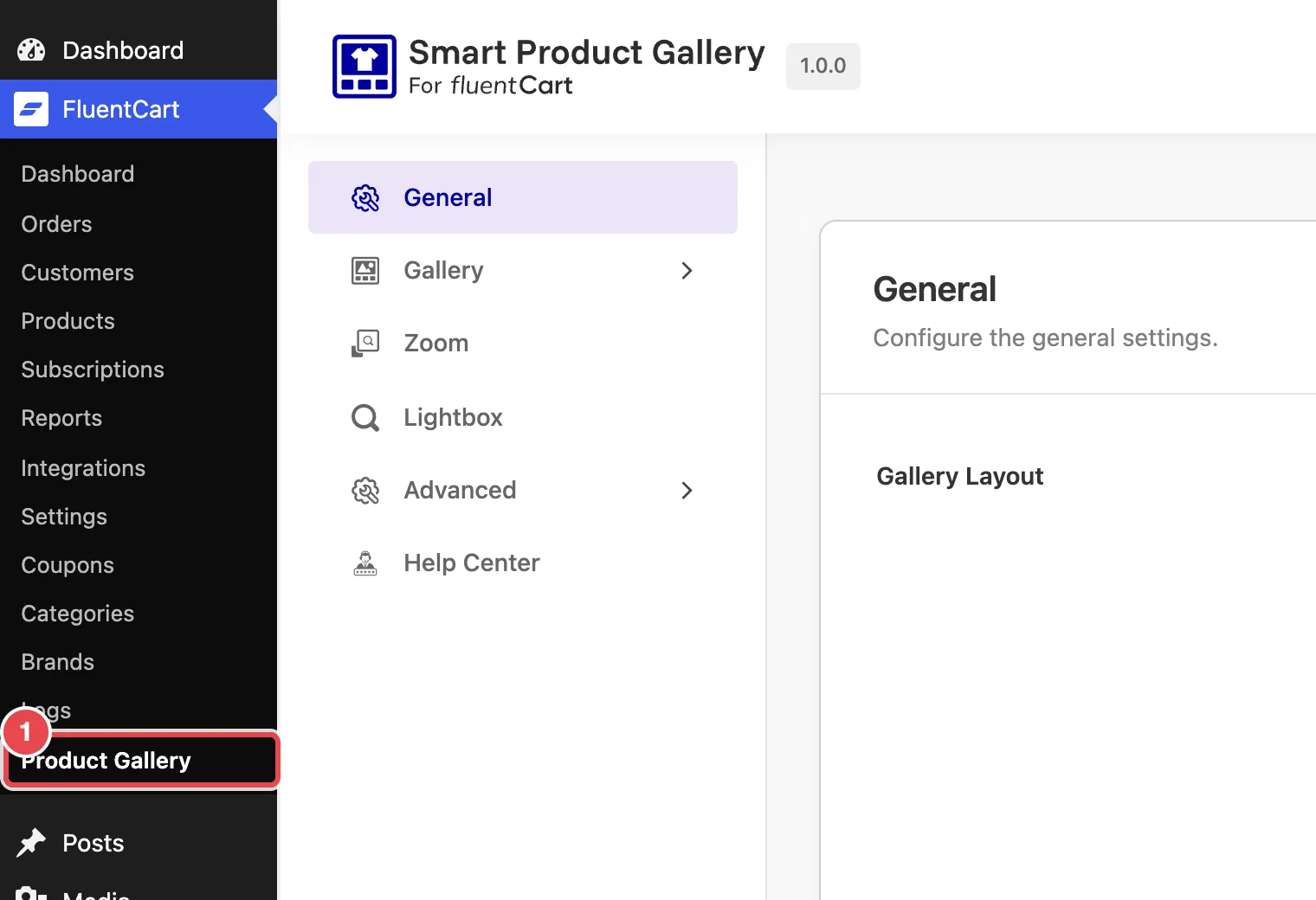
- In WordPress, go to FluentCart → Product Gallery, then open Advanced → License Key. The reminder's Activate Now link goes to the same screen.
- Paste the key into the Enter your license key here... field.
- Click Activate.
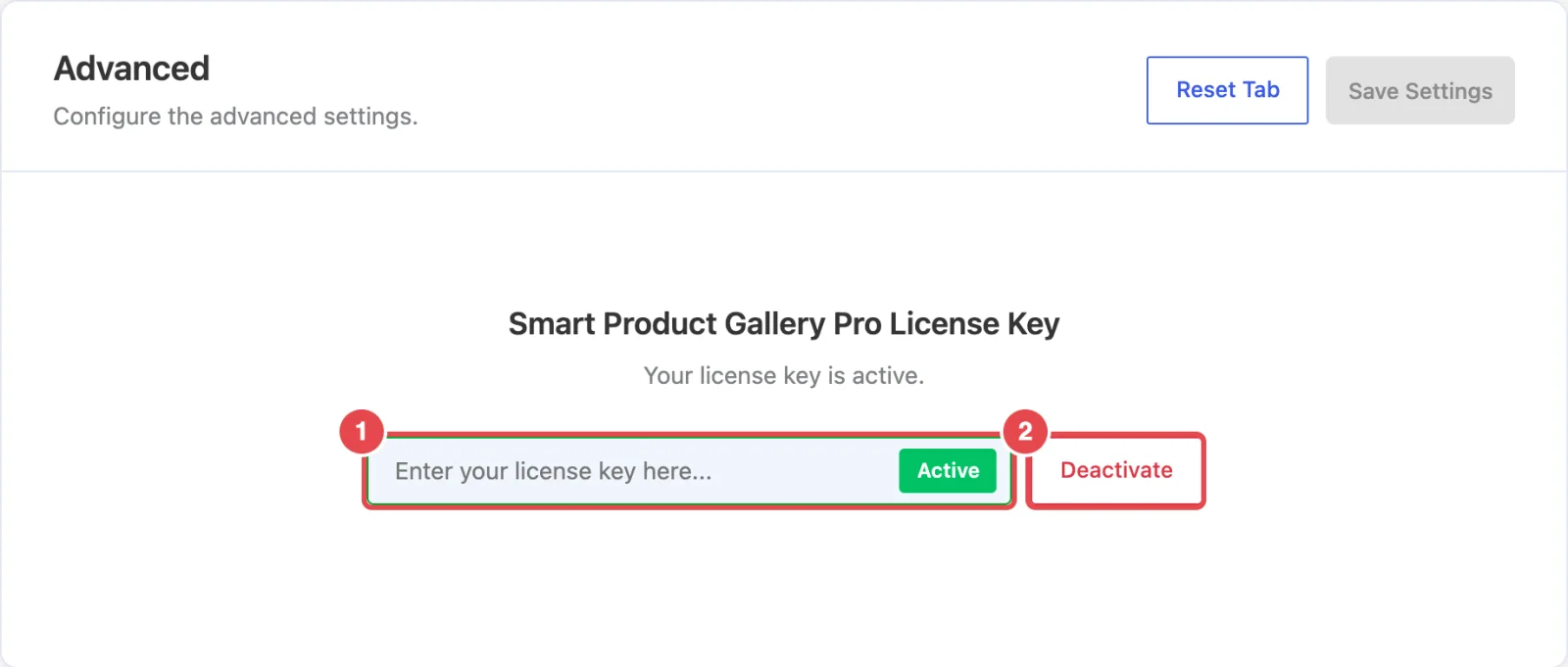
When it works, you'll see License activated successfully!. The screen then says Your license key is active., with a green Active badge in the field. The Activate button becomes a red Deactivate button.
If activation fails
The message tells you what went wrong:
| Message | What it means | What to do |
|---|---|---|
| Your license key has reached its activation limit. | The key is already in use on as many sites as your plan allows. | Deactivate it on a site you no longer use, or upgrade your plan. |
| Your license key expired on … | The license term has ended. | Renew it from your ShapedPlugin account. The expiry reminder in your admin links straight to checkout. |
| Invalid license. / This appears to be an invalid license key for … | The key was mistyped, or it belongs to a different product. | Copy the key again from your account. Watch for spaces at either end. |
| Your license is not active for this URL. | The key is registered to another site address. | Deactivate it there first, or contact support. |
| Your license key has been disabled. | The key was turned off on the account side. | Contact support. |
| An error occurred, please try again. | Your site couldn't reach the license server. | Try again in a minute. If it keeps failing, your host may be blocking outgoing requests. |
Moving to a new site
On the old site, open Advanced → License Key and click Deactivate. That frees up the activation. Then activate the same key on the new site.
Check it worked
- Look under the FluentCart menu in your admin. There's a new item called Product Gallery. You can also click Settings under the plugin on the Plugins screen.
- Open any product on your store. If you use a classic theme, the gallery has already changed. It's in the default Thumbs Bottom layout, with arrows on the main image.
- If you use a block theme (Twenty Twenty-Five, for example) and the product page still shows FluentCart's original gallery, that's expected. One extra step puts Smart Product Gallery into your product template. Set it up on a block theme →
Where to go next
- Quick Start — pick a layout and make it yours
- How It Works — where the gallery shows up, and why
- Settings Overview — find your way around the settings page