

Gallery Slider
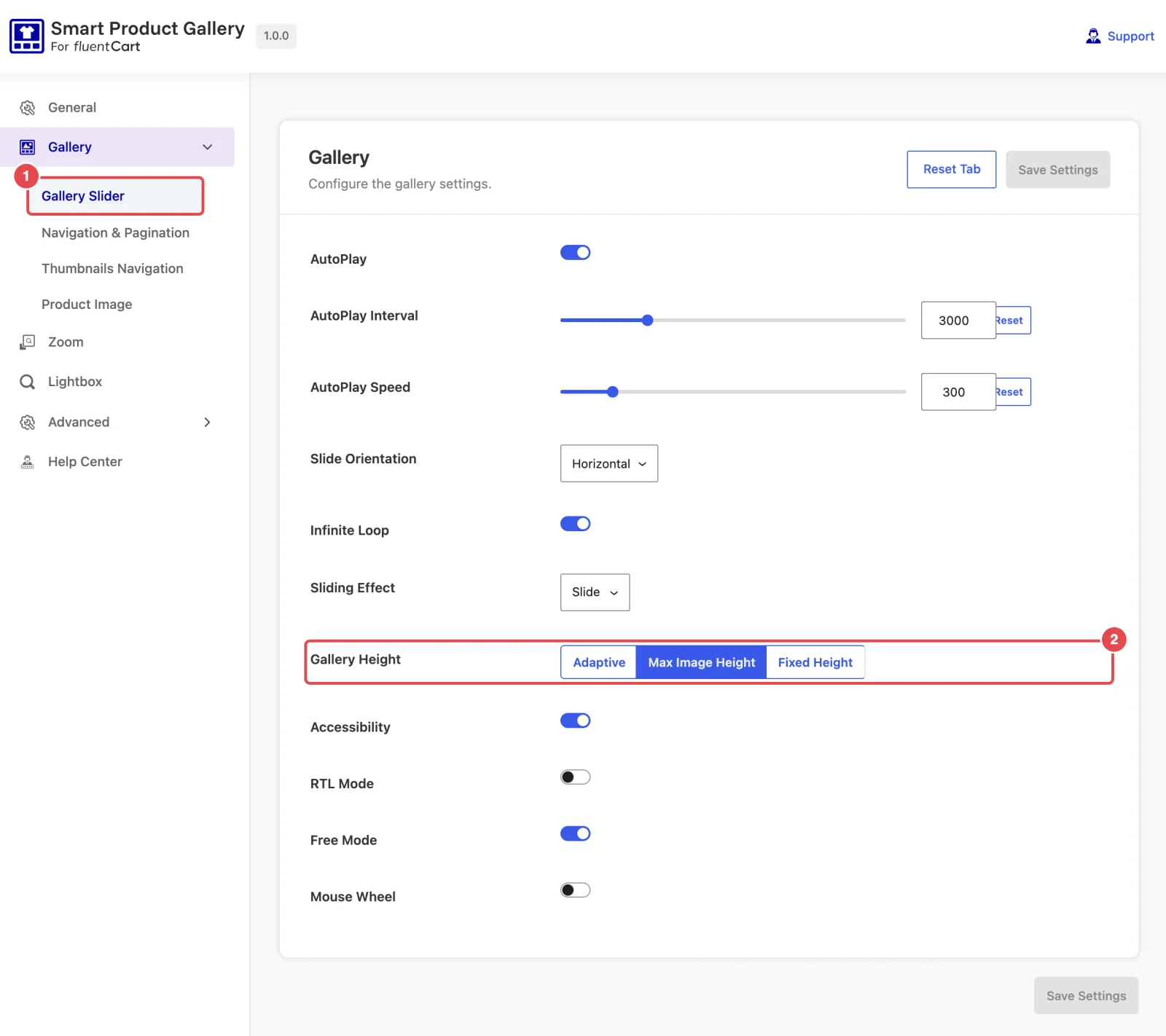
Control how the main image moves: whether it plays on its own, how it changes from one photo to the next, and how tall the gallery is.
Where to find it: FluentCart → Product Gallery → Gallery → Gallery Slider (admin.php?page=smart-product-gallery#gallery/gallery_slider)
A slider shows one image at a time, and shoppers move through the rest with arrows, dots, thumbnails or a swipe. Six layouts use one: Thumbs Bottom, Thumbs Top, Thumbs Left, Thumbs Right, Multi-row Thumbs and Slider.
Not there? Check your layout
This sub-tab disappears for the layouts that show every image at once: Tiles, Hierarchy Grid, Modern Grid, Anchor Nav and Vertical Scroll. They don't slide, so there's nothing here to set.
AutoPlay
| Setting | What it does | Default |
|---|---|---|
| AutoPlay | Moves to the next image on its own, like a slideshow. | On |
| AutoPlay Interval | How long each image stays on screen before the next one appears, in milliseconds (0–12000). 3000 is three seconds. Shown when AutoPlay is on. | 3000 |
| AutoPlay Speed | How long the change from one image to the next takes, in milliseconds (0–2000). Despite the name, it applies to every change, including ones the shopper starts with an arrow or thumbnail. | 300 |
Should a product gallery autoplay?
Shoppers often stop to study one photo, and an image that changes under them can be annoying. Autoplay keeps going while the pointer is over the gallery and after a shopper clicks an arrow. If your products need close inspection (jewellery, fabrics, electronics), try turning AutoPlay off.
Slide behavior
| Setting | What it does | Default |
|---|---|---|
| Slide Orientation | Horizontal slides images left and right. Vertical slides them up and down. With Vertical, the gallery's height always adapts to each image. | Horizontal |
| Infinite Loop | After the last image, carries on to the first, and backwards from the first to the last. Turn it off to stop at each end. Loop switches itself off when a product has fewer images than its thumbnail strip shows. | On |
| Sliding Effect | The transition between images: Slide, Fade, Flip or Cube (a 3D rotation). | Slide |
Fade is the gentlest of the four and suits most stores. Flip and Cube are eye-catching, but they can feel like a gimmick on a product page, so test them on a real product before you commit.
Gallery height
Product photos are rarely all the same shape. This setting decides what the gallery does when they aren't.
| Setting | What it does | Default |
|---|---|---|
| Gallery Height | Adaptive resizes the gallery to fit each image, so the page below can shift as shoppers browse. Max Image Height sizes the gallery to the tallest image and keeps it there. Fixed Height uses heights you set. | Max Image Height |
| Height | Three heights in pixels (0–2000): Height Desktop, Height Tablet (px) and Height Mobile (px). Tablet applies below 736px wide and Mobile below 520px. Shown when Gallery Height is Fixed Height. | 500 / 500 / 500 |
Max Image Height is the safe choice. The buy button and description stay put however the photos are shaped. Pick Fixed Height when you want every product page to line up exactly, and Adaptive only when your photos really do vary and the page jumping doesn't bother you.
Interaction
| Setting | What it does | Default |
|---|---|---|
| Accessibility | Adds labels such as "Previous slide" and "Next slide" so screen readers can announce the controls, and lets keyboard users operate them. Leave it on. | On |
| RTL Mode | Runs the gallery right-to-left, for languages such as Arabic and Hebrew. If your site language is already right-to-left, the gallery switches on its own, so you don't need this. | Off |
| Free Mode | Lets the thumbnail strip glide freely when it's swiped or dragged, instead of snapping to the nearest thumbnail. | On |
| Mouse Wheel | Lets shoppers change images by scrolling the mouse wheel over the gallery. It can catch people out when they only meant to scroll down the page, so it's off by default. | Off |
See Accessibility & RTL for how the gallery behaves with keyboards, screen readers and right-to-left languages.
In the free plugin
Every option on this sub-tab is available in the free Smart Product Gallery for FluentCart, including all four sliding effects.
Where to go next
- Navigation & Pagination: the arrows and dots on the main image.
- Thumbnails Navigation: arrows for the thumbnail strip.
- Product Image: image size, lazy loading and rounded corners.