

Block Editor & Site Editor
On a block theme, swap FluentCart's gallery block for Smart Product Gallery's Product Gallery block in the Single Product template. You only do it once.
If your theme is a block theme (Twenty Twenty-Four, Twenty Twenty-Five, and others you edit under Appearance → Editor), this is the page you need. Block themes draw product pages from a template, so the gallery needs placing there by hand. Block Themes explains why. This page is the step-by-step.
On a classic theme you can skip all of this. The gallery appears automatically.
You can do this in 3 steps
- Open the Single Product templateAppearance → Editor → Templates.
- Swap the gallery blockRemove FluentCart's, insert Smart Product Gallery's.
- Save and check a productEvery product now uses the new gallery.
Step 1: Open the Single Product template
- In your WordPress admin, go to Appearance → Editor.
- Click Templates.
- Find Single Product and click it. FluentCart adds this template, and its description reads "Displays Single FluentCart Product." Clicking FluentCart in the left column narrows the list to FluentCart's own templates.
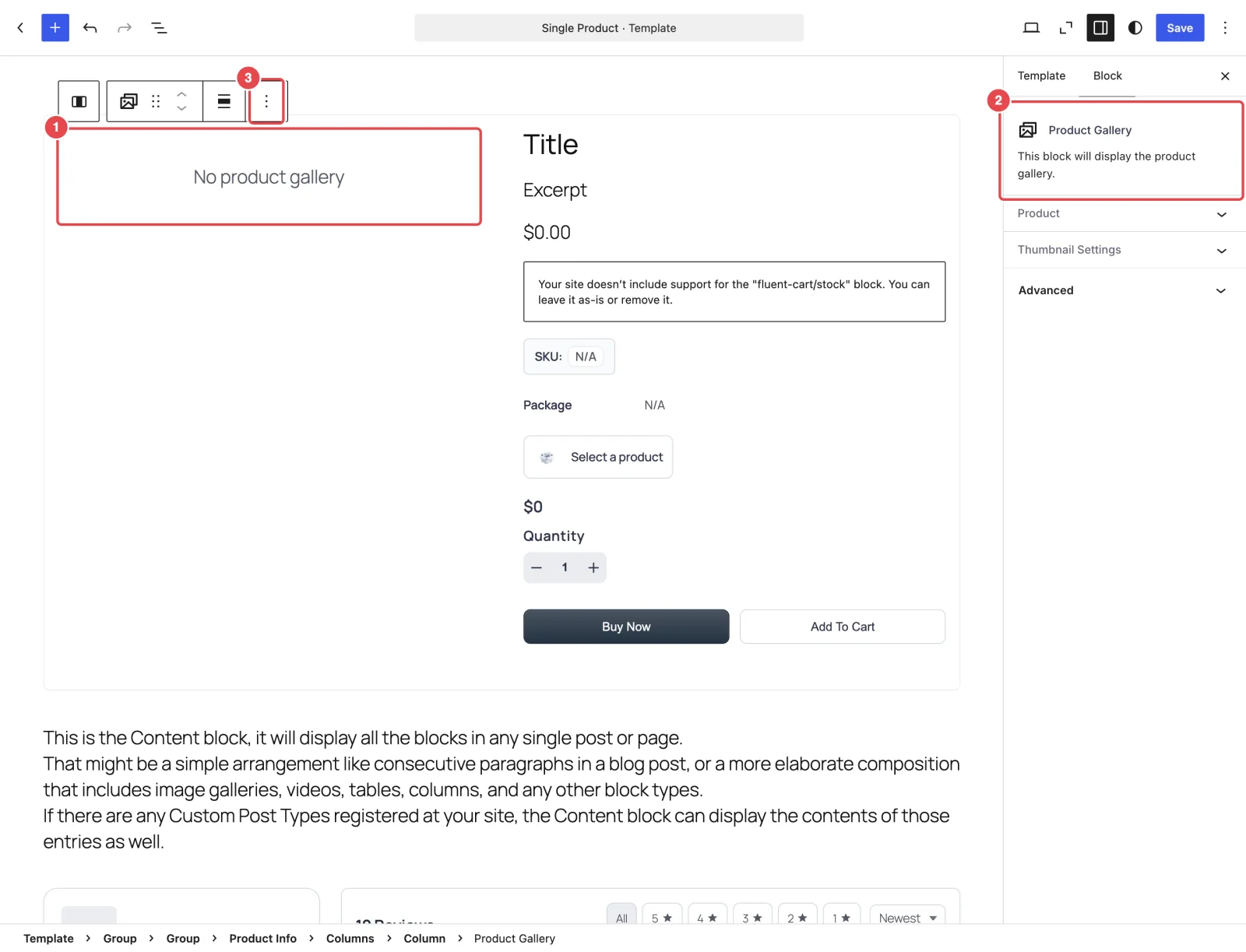
The template opens with the product's gallery on the left and the title, price and Buy Now area on the right. The gallery on the left is FluentCart's own Product Gallery block.
Step 2: Swap the gallery block
- Click the gallery on the left of the product area to select it. If it's hard to target, open List View (the icon of three stacked lines at the top left) and pick Product Gallery inside Product Info → Columns → Column.
- Delete it. Open the block's ⋮ menu and choose Delete, or press Shift + Alt + Z.
- With the empty column still selected, click the + inserter and search for Product Gallery.
- Pick Smart Product Gallery's block. Inside the emptied column, the small inserter normally offers only this one. In the full inserter (the blue + at the top left), both plugins' blocks appear: hover each one and choose the block whose description reads "Display FluentCart product gallery with advanced features."
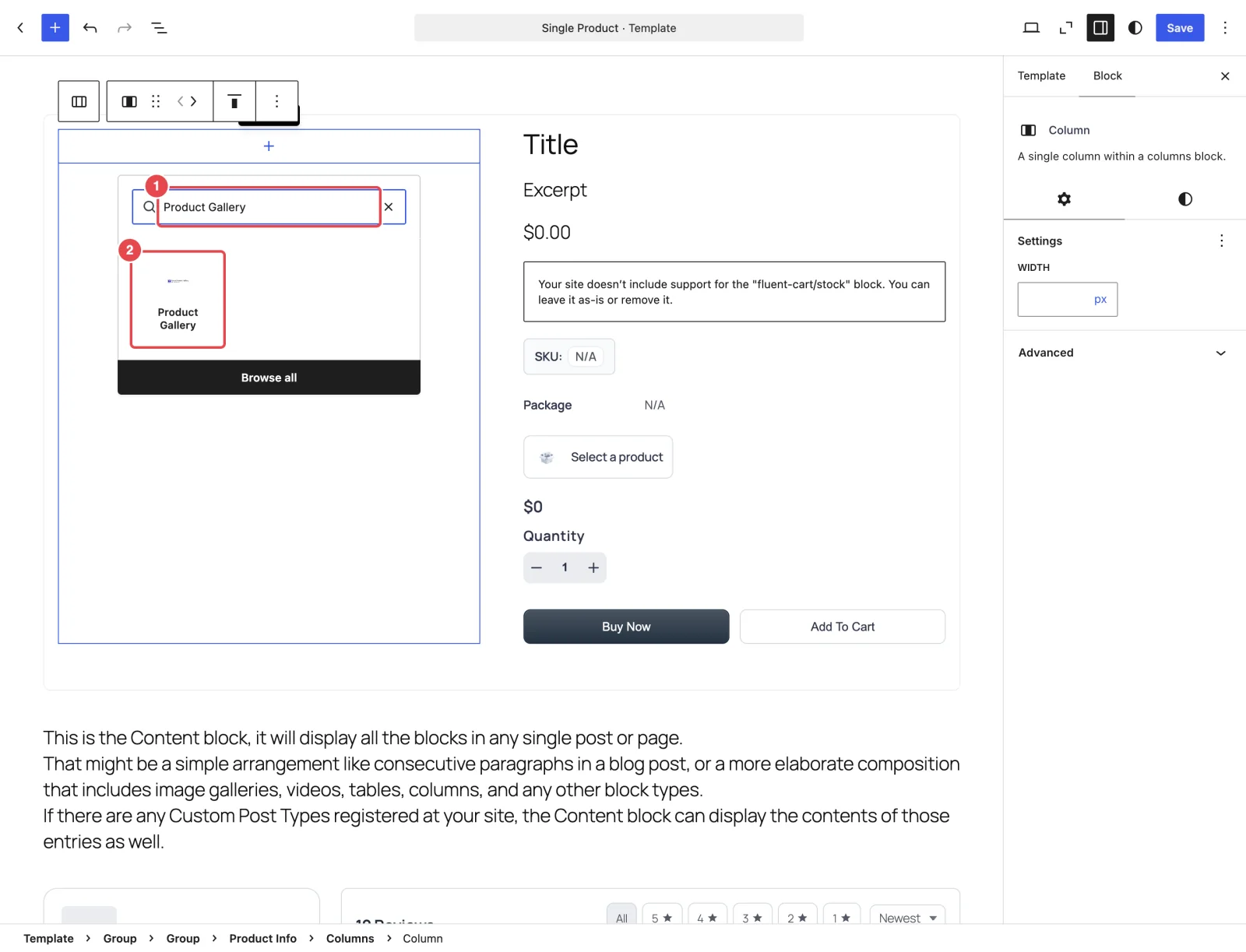
Two blocks share the name, so replace, don't add
FluentCart's gallery block is also called Product Gallery. If you insert that one by mistake, nothing changes on your store, so check the icon before you insert. Make sure you removed FluentCart's block in step 2, too. If both blocks stay in the template, every product page shows two galleries, one above the other.
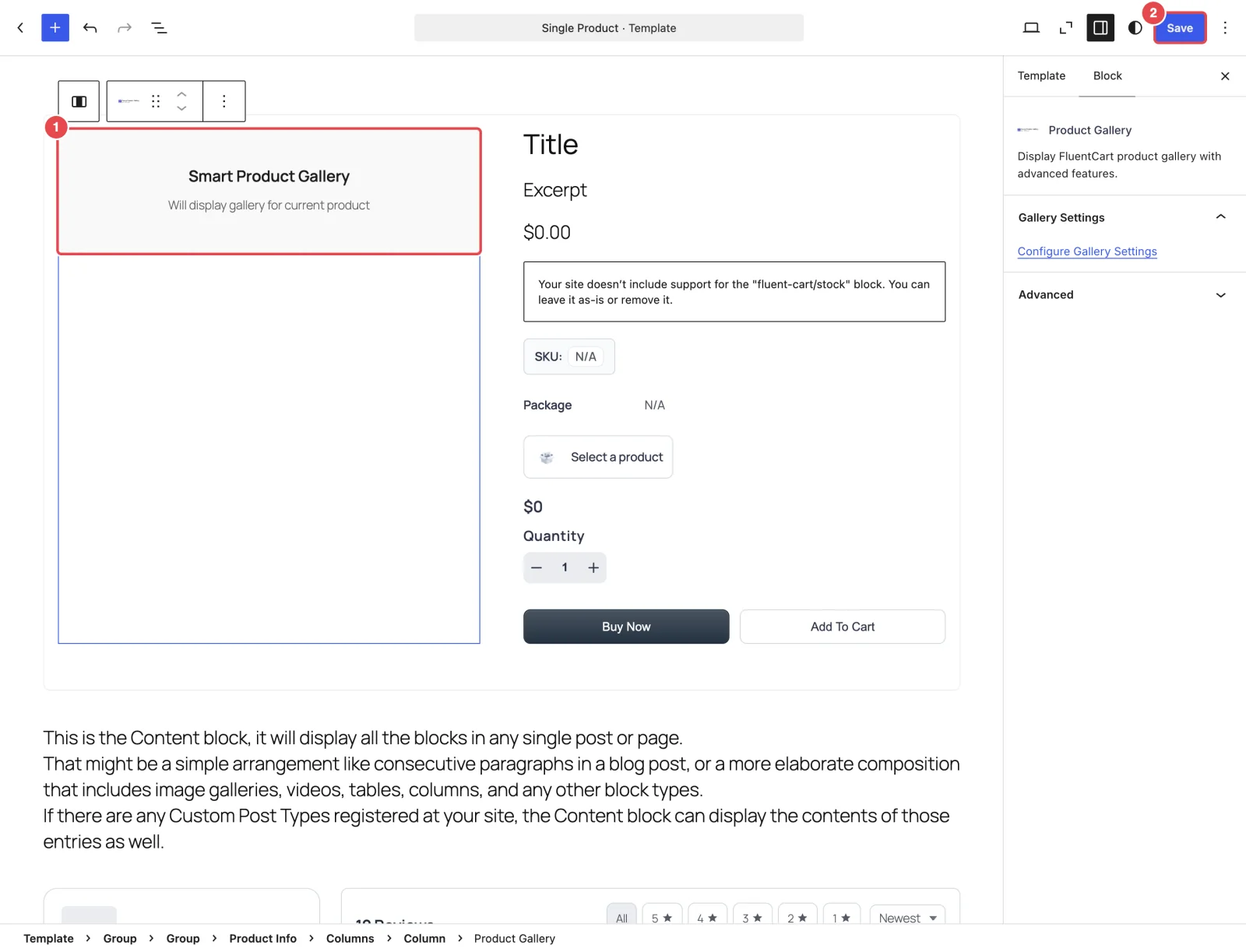
In the editor, the block appears as a placeholder titled Smart Product Gallery that says "Will display gallery for current product". It doesn't preview a real gallery in the editor, because the template isn't tied to one product. The live gallery shows on the front end.
Step 3: Save and check a product
- Click Save at the top right.
- Open any product on your store in a new tab and refresh. You'll see Smart Product Gallery, using whatever you've set under FluentCart → Product Gallery.
You're done. You don't need to touch the template again when you change layouts, colors or zoom. Those all live on the settings page.
The block's settings
The block doesn't have its own options, and that's deliberate. The gallery looks the same on every product, so all styling lives in one place. The block's sidebar has a single panel, Gallery Settings, with a Configure Gallery Settings link. It opens FluentCart → Product Gallery in a new tab.
Using the block elsewhere
The block always shows the gallery of the product being viewed, and the gallery's scripts and styles only load on FluentCart product and shop pages. So it belongs in product templates. If you want a product's gallery on an ordinary page or post, such as a landing page, use the shortcode with the product's ID instead. It loads everything it needs on any page:
[smart_product_gallery product_id="123"]Undoing the swap
To go back to FluentCart's original gallery, open the Single Product template again. Then either swap the blocks back, or use the template's ⋮ menu → Reset to throw away your changes to the template. Resetting also removes any other edits you've made to that template. More on undoing →
Troubleshooting
The product page still shows FluentCart's gallery. Check that you edited the FluentCart Single Product template and not another one, that you saved it, and that you inserted the block described as "Display FluentCart product gallery with advanced features." If you use a caching plugin, clear its cache.
I can't find the block in the inserter. Make sure Smart Product Gallery (free or Pro) is active, then search for "gallery" or "fluentcart". The block lives in the Widgets category.
The gallery shows, but with no images. The gallery uses the images you've added to the product in FluentCart. Open the product and check it has a featured image or gallery images.