

Variation Images
When a shopper picks a color or style, the gallery switches to the photos for that choice. You decide whether the gallery starts with every photo or with the first variation's photos.
In FluentCart, a variation is one buyable version of a product — Dark Green, Size M, Leather band. Each variation can have its own images. Smart Product Gallery collects them all into one gallery and then filters it as the shopper makes choices, so they always see the version they're about to buy.
There's nothing to switch on. As long as your variations have images in FluentCart, the gallery follows the shopper's picks.
Where the gallery's photos come from
For each product, the gallery gathers photos in this order:
- The product's featured image.
- The product's gallery images from FluentCart.
- Each variation's images, tagged with the variation they belong to.
The featured image and gallery images are the product's default photos. Variation photos are only shown when they're relevant — how that works depends on Gallery Image Source.
What shoppers see when they pick a variation
The moment a shopper clicks a variation, the gallery rebuilds itself with just that variation's photos — main image, thumbnails and lightbox alike. Pick another variation and it swaps again.
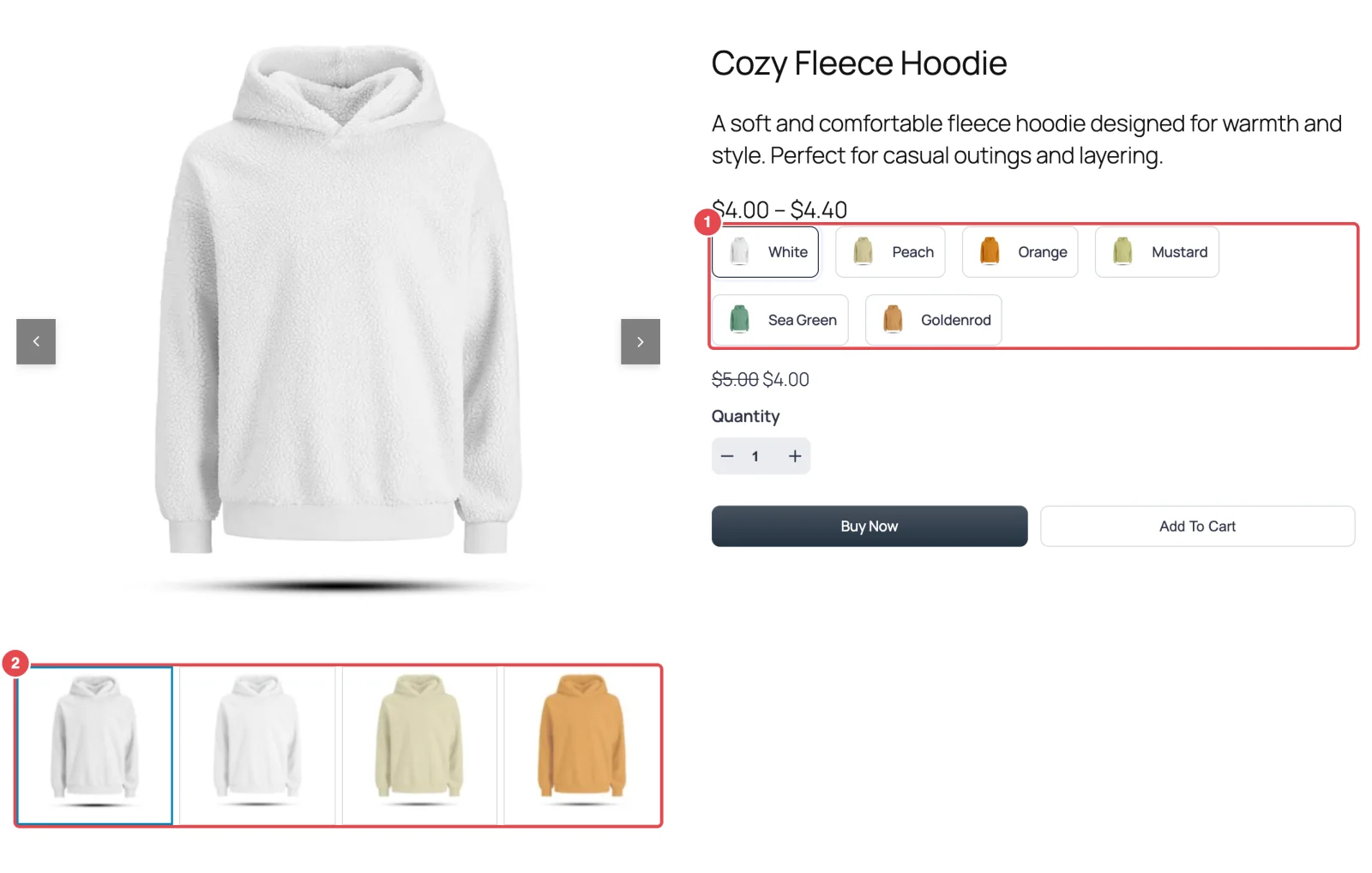
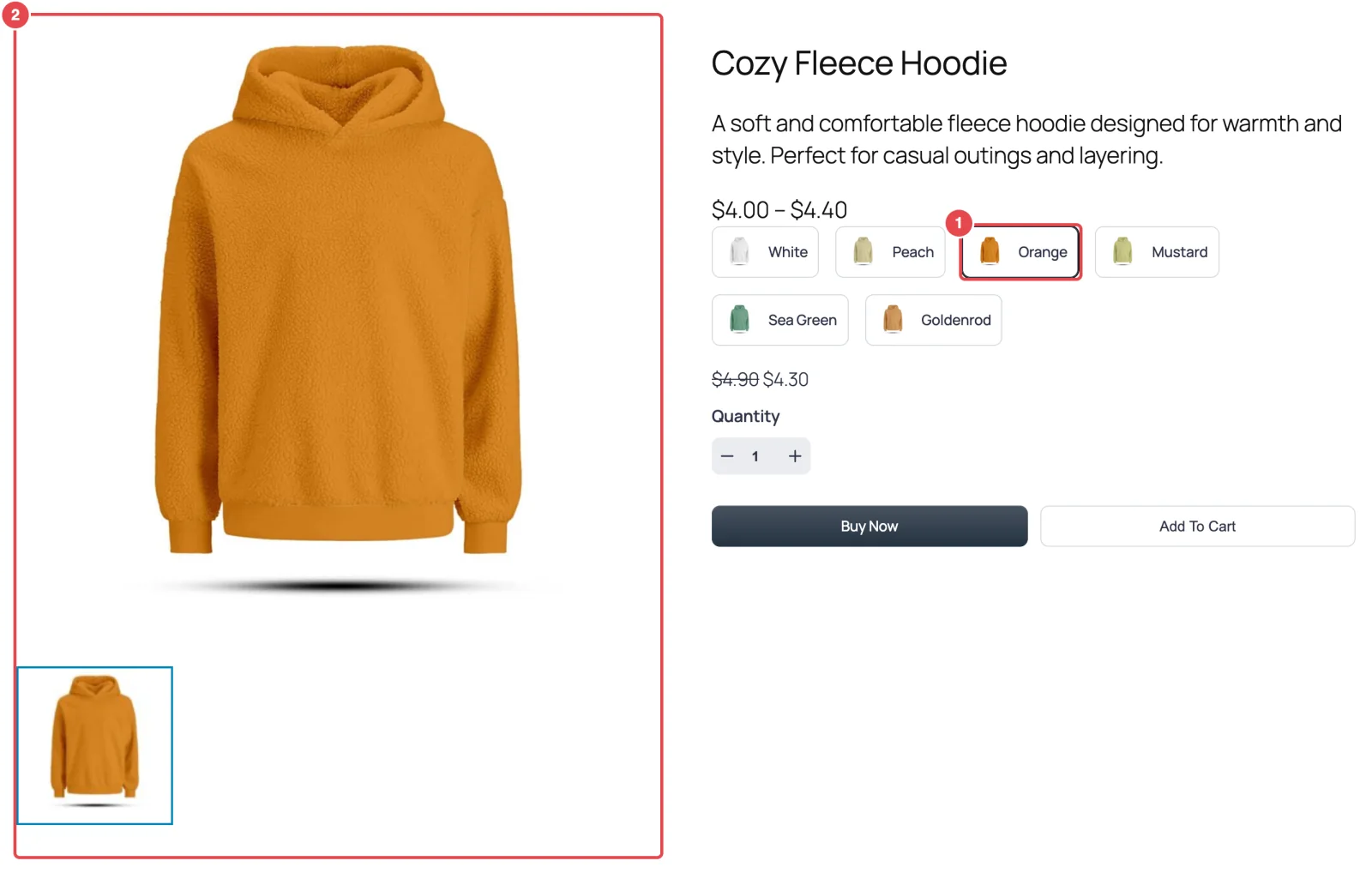
A few details worth knowing:
- A variation with no images of its own falls back to the product's default photos rather than leaving the gallery empty.
- It works in every layout. Slider layouts rebuild the slides and thumbnails; grid layouts and the scrolling layouts (Anchor Nav, Vertical Scroll) hide the photos that don't belong.
- Zoom and the lightbox follow along. Zoom re-attaches to the new first photo, and the lightbox only cycles through the photos currently shown.
Choose what the gallery starts with
Gallery Image Source is on the General tab. It decides what shoppers see before they pick anything. See Gallery image for the field reference.
| Option | On page load | After picking a variation |
|---|---|---|
| Default & Variation Images (default) | Every photo — default photos and all variation photos | Only that variation's photos |
| Variation Images | Only the first variation's photos | Only that variation's photos |
Default & Variation Images is the right choice for most stores: shoppers who arrive and scroll through the gallery see the whole range before deciding.
Variation Images suits products where the default photos and the variation photos would clash — say, a generic lifestyle shot plus fifteen color-specific packshots. Starting on the first variation keeps the gallery focused from the first second. Make sure the first variation in FluentCart is the one you want to lead with.
Set it up for a product
The work happens in FluentCart, not in the gallery settings:
- Open the product in FluentCart → Products.
- Give each variation its own images in the product's pricing/variation section.
- Save the product.
The Gallery per Variation tutorial walks through a full example.
Products with attribute swatches don't switch yet
FluentCart can show variations in two ways. A product with a single list of options, like White, Peach, Orange, shows one row of variation buttons, and the gallery follows those. A product built from attributes, like Material and Color combined, shows a separate row of swatches for each attribute. The gallery doesn't currently react to those swatches: it keeps every photo, and the shopper's pick doesn't change it. Until that's supported, a single list of variations is the way to get photos that follow the choice.
Things worth knowing
- Settings are global. Gallery Image Source applies to every product; you can't set it per product.
- "Picking a variation" means clicking a FluentCart variation button. The gallery listens for FluentCart's own variation buttons. A custom variation picker built by a theme or another plugin may not trigger the switch.
- The free plugin works differently. It keeps every photo in the gallery and, when a variation is picked, slides to that variation's first photo instead of filtering. The Gallery Image Source choice isn't shown there.
Where to go next
- Gallery per Variation — step-by-step with a real product
- General settings — Gallery Image Source and its neighbors
- Quick View Pop-up — variation filtering in the shop's pop-up