

Block Themes
On a block theme, you place Smart Product Gallery in your Single Product template once. It takes about two minutes, and every product uses it from then on.
A block theme builds every page from blocks, including the header, the footer and the product page itself. You edit it in the Site Editor (Appearance → Editor) instead of the Customizer. Twenty Twenty-Five, Twenty Twenty-Four, Twenty Twenty-Three, Ollie and Frost are block themes. If your Appearance menu has Customize and Widgets instead of Editor, you're on a classic theme, and the gallery already works on its own: see Classic Themes.
You can do this in 3 steps
- Open the Single Product templateAppearance → Editor → Templates → Single Product.
- Swap the gallery blockRemove FluentCart's Product Gallery block and add Smart Product Gallery's.
- SaveEvery product page now uses the new gallery.
Why there's a step here at all
On a classic theme, FluentCart draws the top of each product page in PHP, and Smart Product Gallery swaps the gallery out as the page is built. Block themes work differently. FluentCart gives your theme a Single Product template made of FluentCart blocks: Product Info, Product Gallery, Price Range, Buy Section and others. WordPress renders those blocks directly, so there's no moment for the plugin to step in.
Until you change the template, your products keep FluentCart's own gallery even though the plugin is active and its settings are saved. Nothing's broken. The gallery just hasn't been placed yet.
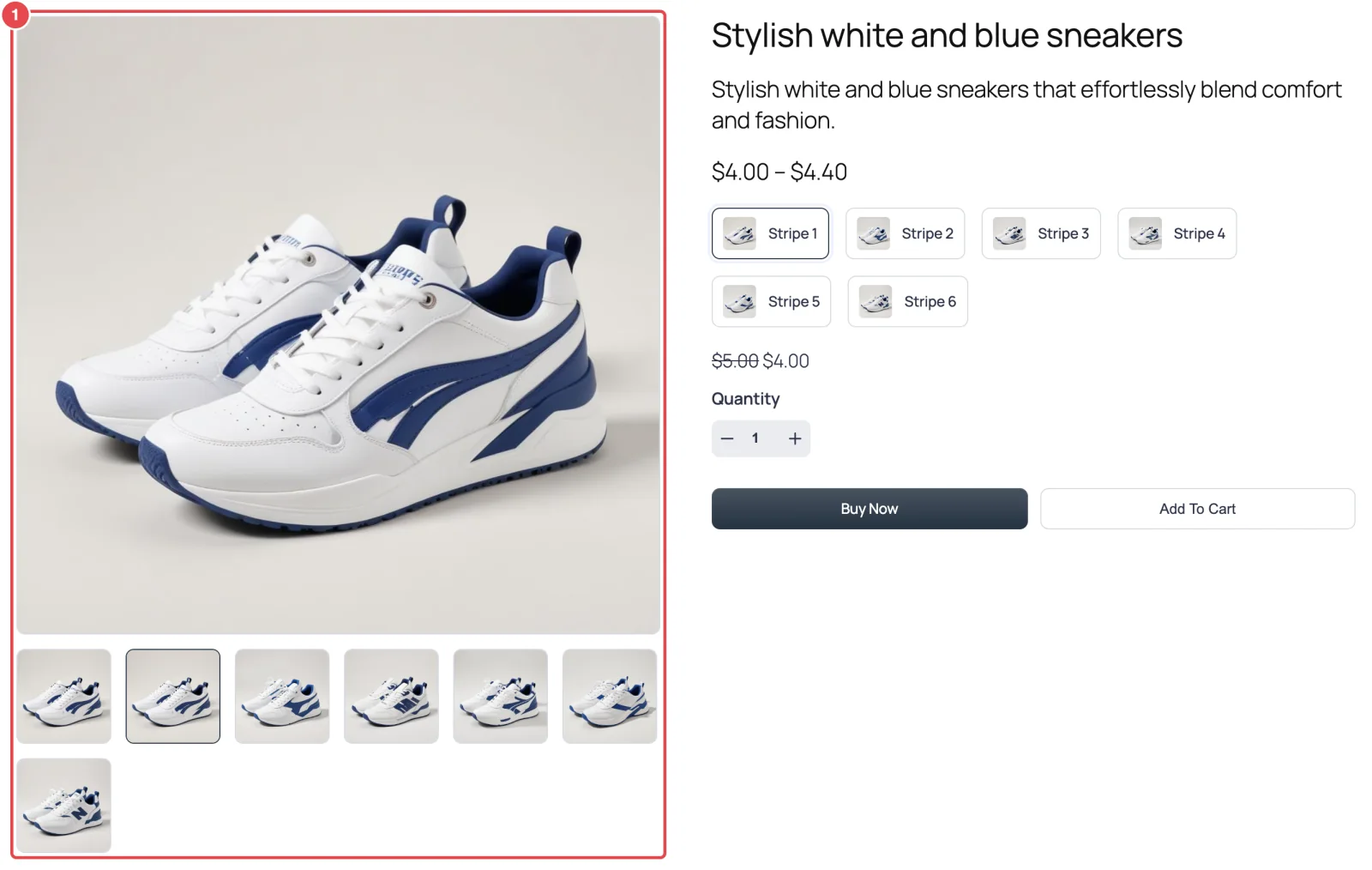
Swap the gallery block
Step 1: Open the Single Product template
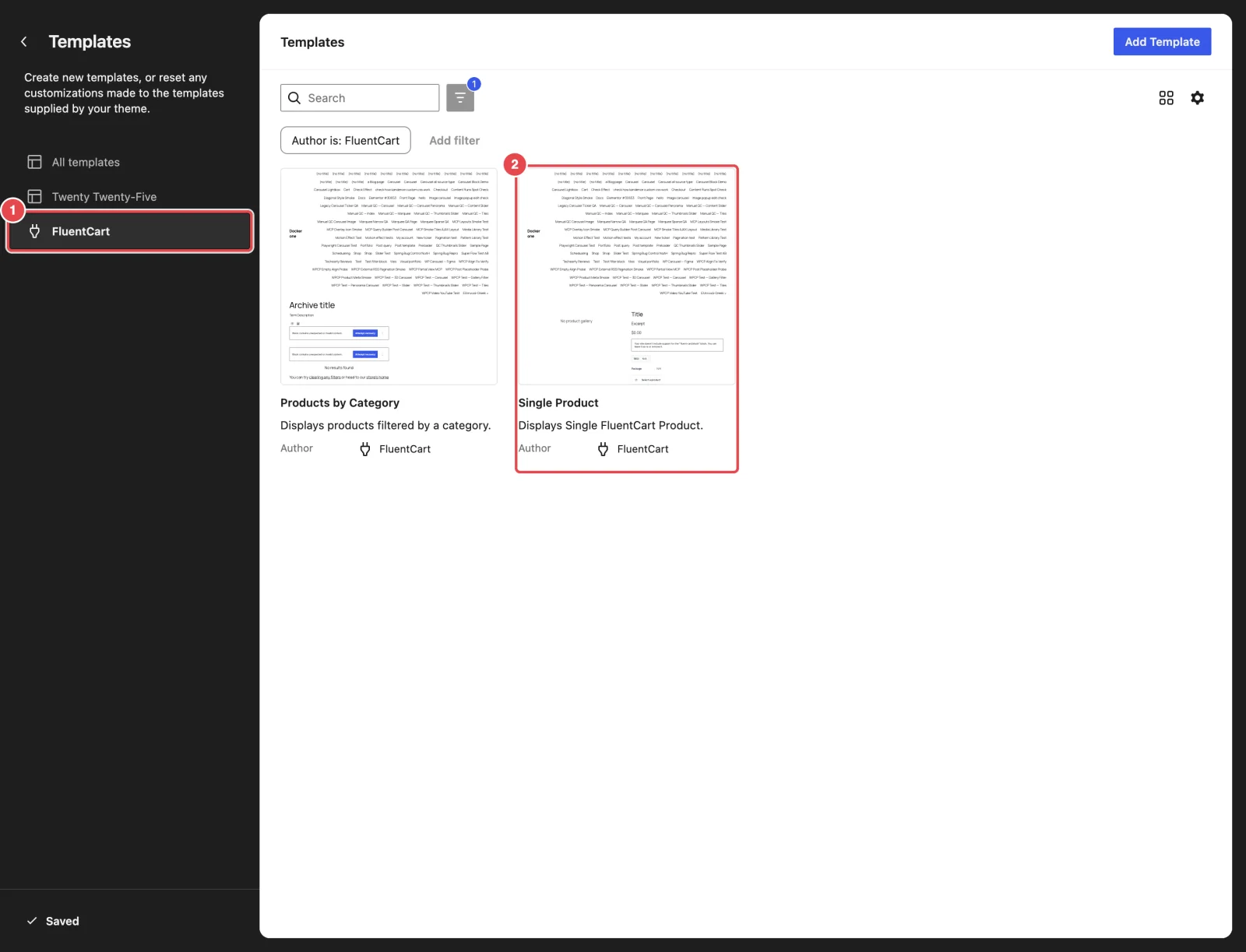
- In your WordPress dashboard, go to Appearance → Editor.
- Click Templates.
- In the left column, click FluentCart to show only FluentCart's templates.
- Click Single Product. The template opens in the editor, showing placeholder text ("Title", "Excerpt") where real product details will go.
Step 2: Replace FluentCart's gallery with Smart Product Gallery's
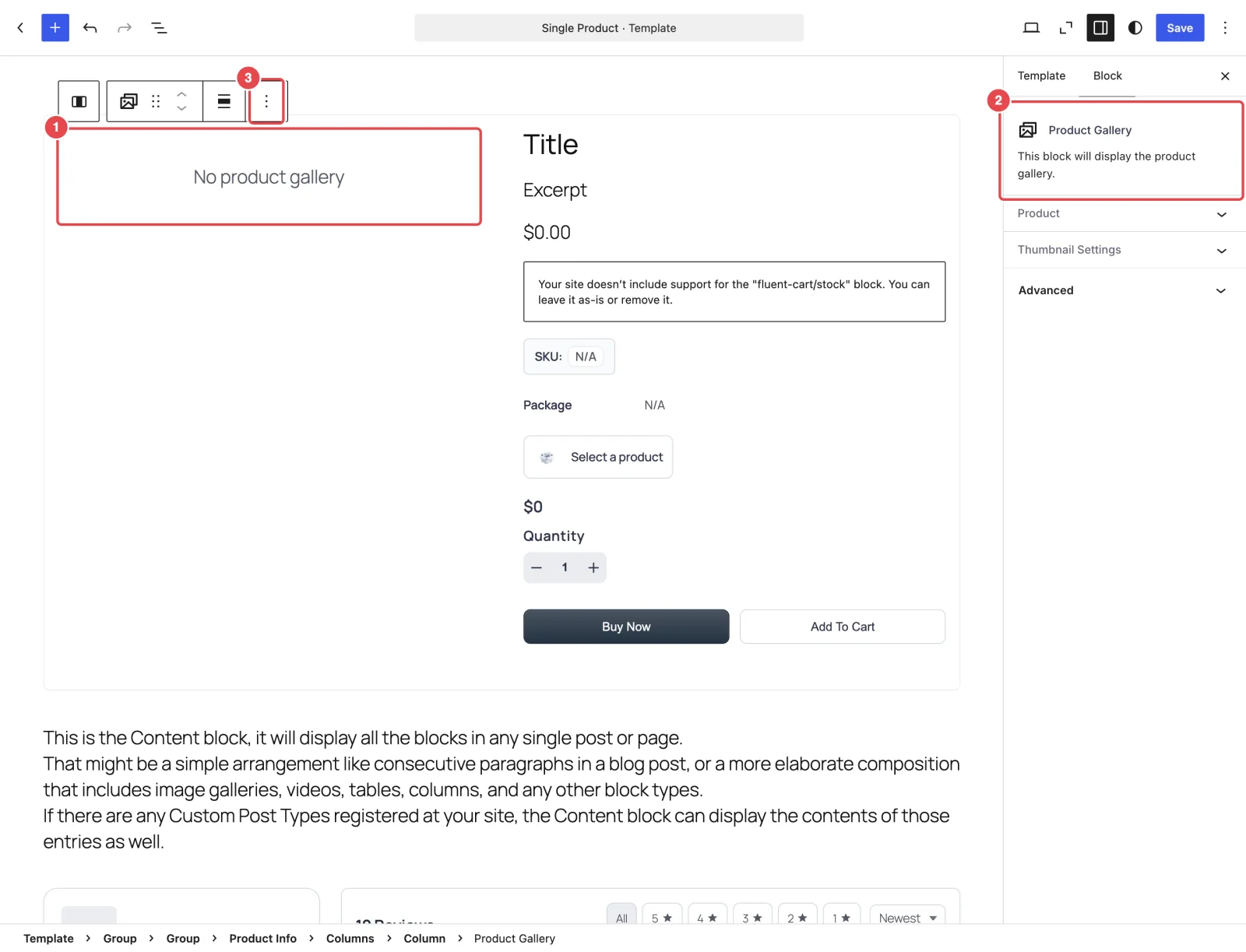
- In the template, click the gallery area in the left column. In the editor it reads No product gallery, because a template has no real product to show. The breadcrumb at the bottom of the screen ends in Product Info › Columns › Column › Product Gallery, and the sidebar says "This block will display the product gallery." That's FluentCart's block.
- In the toolbar above the block, open the ⋮ (Options) menu and choose Delete. The left column is now empty.
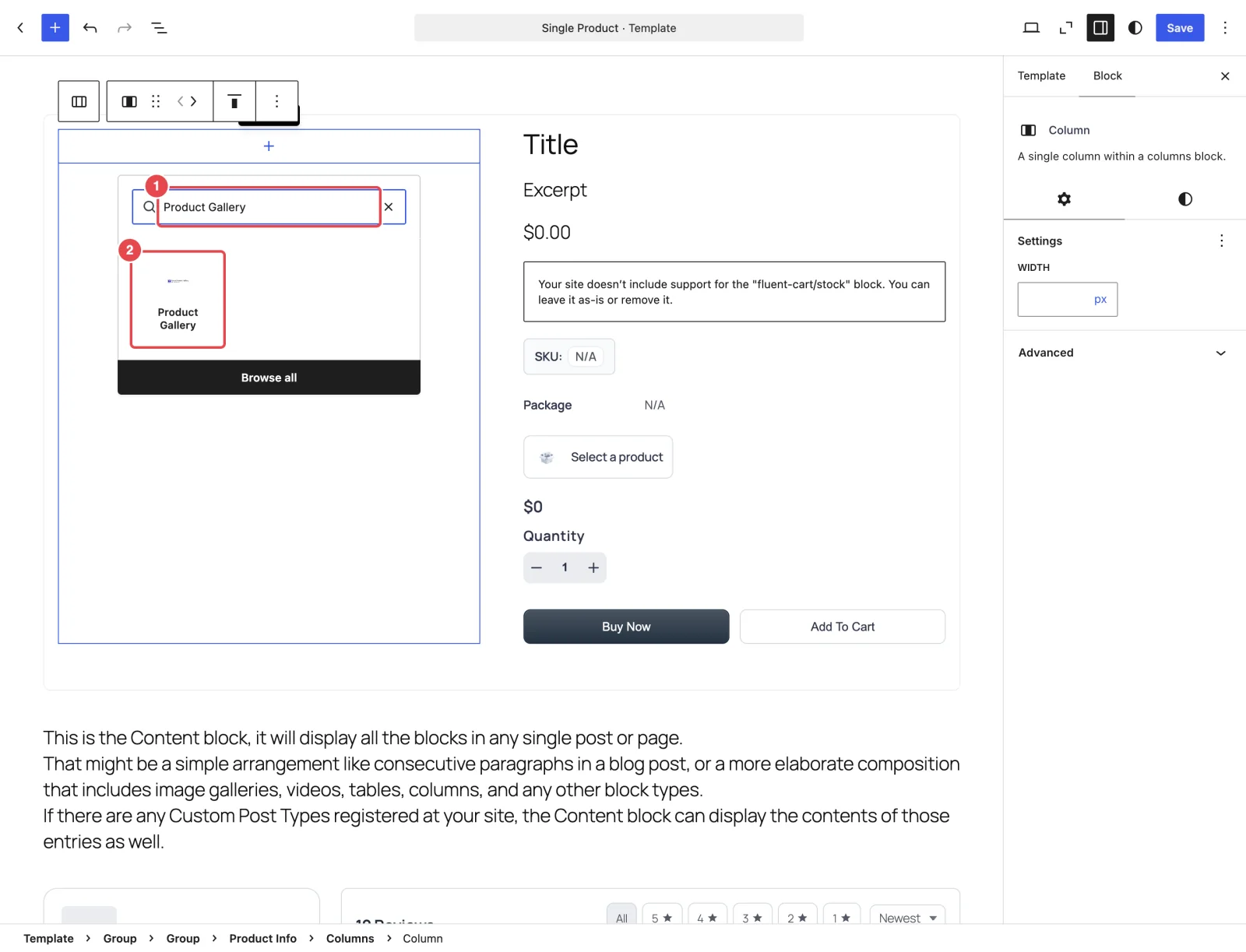
- Click the + that appears in the empty column and type Product Gallery. In that small inserter you'll normally see a single Product Gallery result, which is Smart Product Gallery's. Click it. If you use the big inserter (the blue + at the top left) instead, both plugins' blocks show up. The box below explains how to tell them apart.
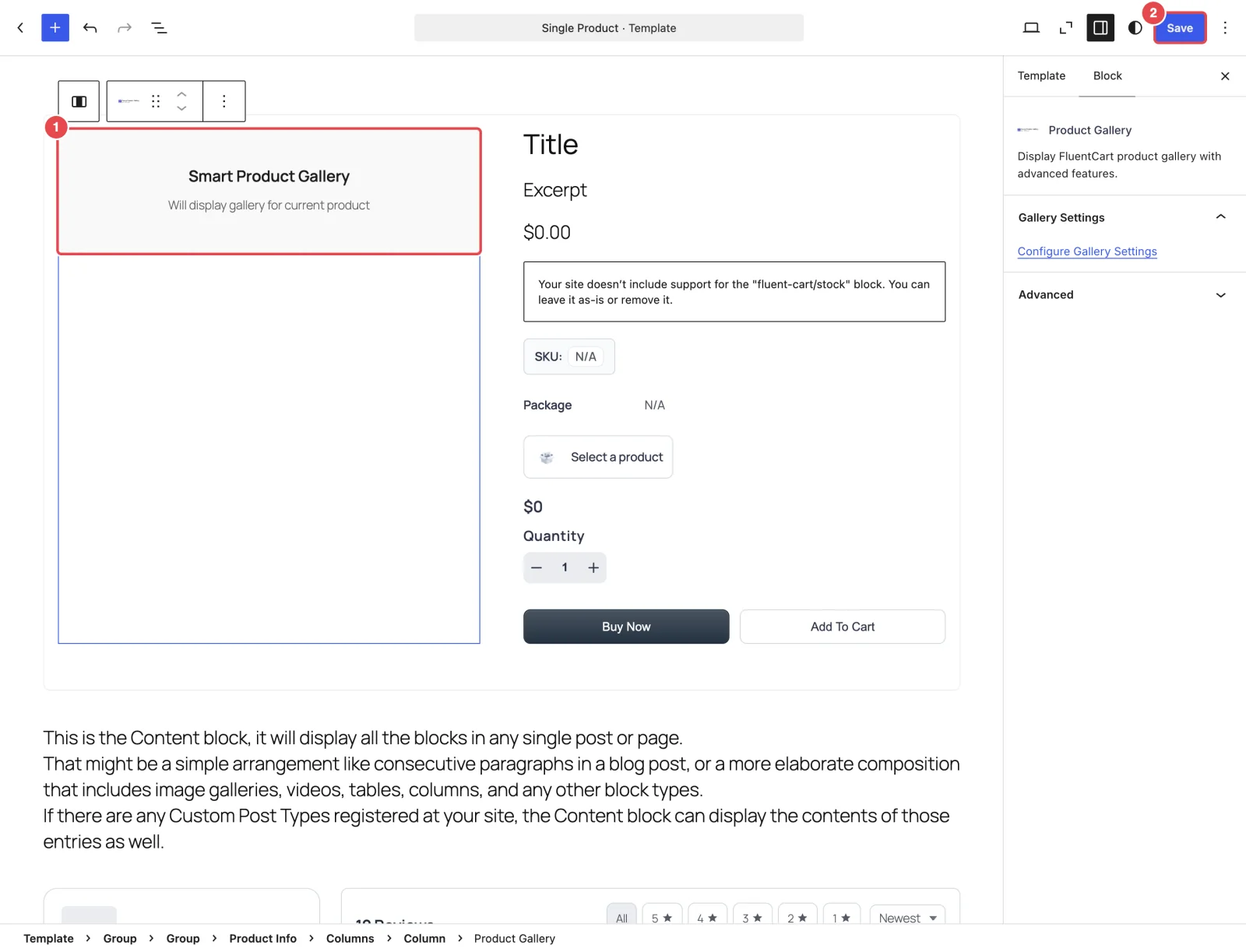
- The block shows a placeholder titled Smart Product Gallery with the line "Will display gallery for current product". That's expected: it shows the real gallery on the front end, for whichever product is being viewed.
Two blocks are called "Product Gallery"
FluentCart and Smart Product Gallery both name their block Product Gallery, so a search can show two of them. To tell them apart:
| FluentCart's block | Smart Product Gallery's block | |
|---|---|---|
| Description | "This block will display the product gallery." | "Display FluentCart product gallery with advanced features." |
| In the template | "No product gallery" | "Smart Product Gallery — Will display gallery for current product" |
| Inserter category | FluentCart | Widgets |
Hover over a block in the inserter to see its description before you pick it. If you keep FluentCart's block as well, your product pages will show two galleries.
Step 3: Save
- Click Save in the top-right corner, then confirm.
- Open any product on your site. You'll see Smart Product Gallery with your saved layout. If you haven't changed anything yet, that's the default Thumbs Bottom.
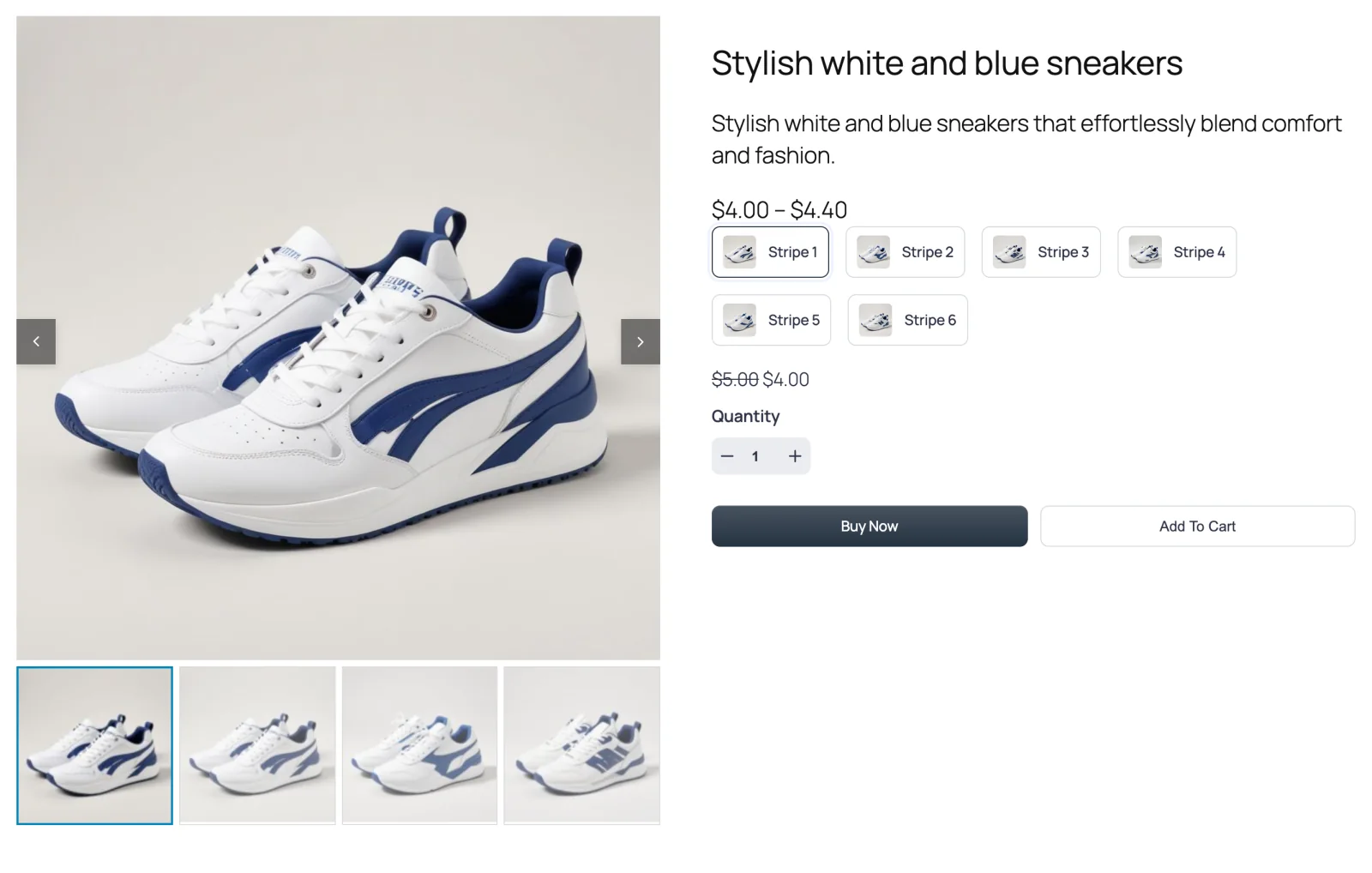
From here on, all styling happens under FluentCart → Product Gallery: layout, zoom, lightbox, arrows and colors. You don't need to come back to the template when you change those settings. The block always uses whatever you saved there, so there's nothing to set on the block itself.
The shop's quick-view pop-up works on its own
The View Options pop-up on your shop page doesn't use the Single Product template, so you don't need to do anything for it. Smart Product Gallery puts its gallery there on block themes and classic themes alike. See Quick View Pop-up.
Going back to FluentCart's gallery
You might deactivate the plugin, or just want the original template back. Either way, you have two options:
- Reset the template. Go to Appearance → Editor → Templates → FluentCart, open the ⋮ menu on Single Product and choose Reset. This removes all your changes to that template, not just the gallery swap.
- Swap the block back. Repeat Step 2 in reverse: delete Smart Product Gallery's block and add FluentCart's Product Gallery. Use this if you've made other template changes you want to keep.
Deactivating leaves an empty gap
If you deactivate Smart Product Gallery but keep its block in the template, that spot on your product pages is simply empty. Put FluentCart's gallery back first, or reset the template.
Things worth knowing
- One template, every product. Settings are global, so you can't give one product a different layout. That's true on every theme.
- The free and Pro plugins use the same block. If you upgrade from the free plugin to Pro, the block keeps working and keeps your settings.
- Other templates. If you've made extra product templates (for example one for a product category), each one needs the same swap.
- Using a page builder for the product template? Builders like Elementor or Bricks draw the page themselves. Use the shortcode instead: see Editors & Page Builders.
Where to go next
- Block Editor & Site Editor: more on the Product Gallery block.
- Choose a layout
- Troubleshooting